7 Best Video Editing Software for Chromebook in 2026
Published on December 19, 2025
Chromebooks have come a long way from being "just for browsing." Students cranking out video projects, content creators on a budget, and remote workers collaborating across time zones are all turning to these lightweight laptops for video editing. The appeal is clear: affordable hardware, instant boot times, and a clutter-free ChromeOS experience.
But let's be honest, Chromebooks aren't traditional powerhouses. You're working with a web-first operating system, sometimes modest specs, and a reliance on cloud connectivity. Desktop juggernauts like Adobe Premiere Pro and DaVinci Resolve? They won't run here. That doesn't mean you're stuck with basic slideshow makers, though.
This guide covers 7 of the best video editing software options for Chromebook in 2026: tools that actually work well on ChromeOS, whether you're cutting together a YouTube vlog, editing a class project, or creating social media content.
If you just want to skim and pick a tool fast, start with the list below.
Best Chromebook Video Editors in 2026: A Quick Overview
- Flixier - Best cloud video editor for Chromebook users. Fast cloud rendering, powerful multi-track timeline, and collaboration features make it the top choice for YouTube creators and serious video projects.
- Clipchamp - Best for casual, everyday edits. Microsoft's basic browser editor works for simple personal videos and quick fixes.
- WeVideo - Best for schools and education-focused projects. Designed specifically for classroom collaboration with teacher dashboards and student accounts.
- Kapwing - Best for memes and ultra-fast social clips. Specializes in viral content, auto-captions, and repurposing short-form videos.
- Adobe Express - Best for branded graphics with video elements. Template-first tool for marketers creating social posts and simple promos.
- Canva Video Editor - Best for design-heavy slideshows and presentations. Ideal for non-editors who need animated graphics more than traditional video editing.
- KineMaster (Android app) - Best mobile-style editor for touchscreen Chromebooks. Finger-friendly interface for quick edits on compatible devices.
Tool | Type | Works on Chromebook? | Offline Support | Pricing Model | Best For | Ease of Use |
| Flixier | Web | Yes - Browser | No | Freemium | YouTube creators, serious projects, collaboration | Easy |
| Clipchamp | Web | Yes - Browser | No | Freemium | Simple personal videos, quick fixes | Beginner |
| WeVideo | Web | Yes - Browser | No | Subscription | Schools, education, classroom projects | Beginner |
| Kapwing | Web | Yes - Browser | No | Freemium | Memes, viral clips, social media repurposing | Beginner |
| Adobe Express | Web | Yes - Browser | No | Freemium | Branded graphics, simple marketing promos | Beginner |
| Canva Video | Web | Yes - Browser | No | Freemium | Design-heavy slideshows, presentations | Beginner |
| KineMaster | Android | Yes - Google Play | Yes | Freemium | Touchscreen editing, mobile-style interface | Intermediate |
Best Video Editing Software for Chromebook in 2026 - Detailed Reviews
1. Flixier
Cloud-based video editor with AI tools and fast rendering
Flixier is a browser-based video editor that handles rendering on remote servers rather than your local device. This approach means Chromebooks can edit and export videos without being limited by their hardware specs.
Who it's for: Content creators, marketers, educators, and business owners who need consistent video output and prefer browser-based tools. Works great for YouTube content, social media campaigns, product demos, and instructional videos.
Top Features
- AI-assisted editing - Auto-generate voiceovers, subtitles, and translations in over 100 languages. All AI outputs are fully editable.
- Full-featured timeline - Multi-track editing with transitions, effects, keyframes, and precision trimming. Comparable to desktop editors but runs comfortably in Chrome.
- Integrated recording - Capture screen and webcam directly in the browser, then edit immediately without switching tools.
- Team collaboration - Share projects with comments and real-time editing for remote teams.
- Stock media library - Access to royalty-free videos, images, and audio tracks built into the platform.
- Direct platform exports - Publish straight to YouTube, TikTok, Instagram with preset aspect ratios and formatting.
Pricing
Free Plan with watermark and limited exports | Pro from $10/month
Pros
- No installation required - Runs entirely in the browser with no downloads or system requirements to worry about.
- Fast export times - Cloud processing means exports complete quickly even on lower-spec Chromebooks.
- Hardware-independent - Performance stays consistent across devices since processing happens remotely.
- Consolidated workflow - Recording, editing, subtitling, and publishing happen in one tab, without file transfers between apps.
- Suitable for serious projects - More capable than basic web editors while remaining accessible to non-professionals.
Cons
- Internet dependency - Requires stable connectivity for editing and rendering. Can't work offline.
Bottom line: Flixier offers desktop-level editing capability through a browser interface, making it practical for Chromebook users who need more than basic trimming tools. Its AI features handle repetitive tasks like subtitling and voiceovers. It's designed for users who publish regularly and need efficient workflows rather than occasional editors making simple clips.

2. Clipchamp
Simple browser editor for everyday videos
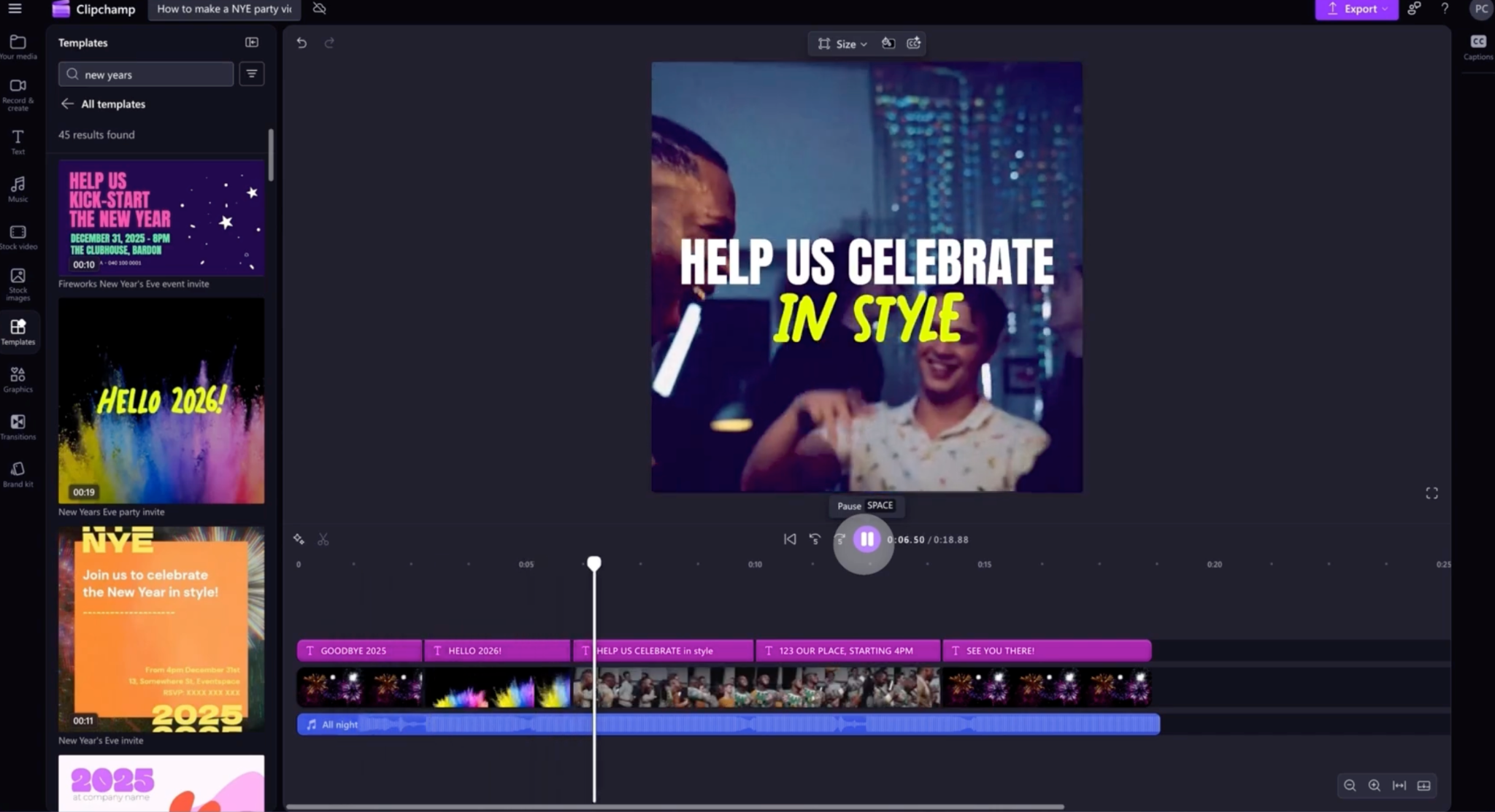
Clipchamp (now owned by Microsoft) is the straightforward choice for casual video editing. It won't wow you with advanced features, but it handles basic cutting, trimming, and social exports without fuss.
Who it's for: Beginners editing personal videos, school projects, or simple content who want something that just works.
Top Features
- Drag-and-drop timeline - Basic editing tools for trimming, cutting, and arranging clips.
- Template library - Pre-made layouts for common video types and social formats.
- Stock media access - Built-in library of videos, images, and music tracks.
- Text and transitions - Simple overlays, titles, and transition effects.
- Social presets - Export formats optimized for different platforms.
Pricing
Free Plan with watermark | Essentials at $11.99/month (included with some Microsoft 365 subscriptions)
Pros
- Extremely beginner-friendly - Minimal learning curve, clean interface.
- Works in the browser - No installation needed on Chromebook.
- Good starting point - Fine for learning basics before moving to more powerful tools.
- Microsoft integration - May already be included if you use Microsoft 365.
Cons
- Paywall for assets - Many stock videos, effects, and premium features require paid plans.
- Not built for complex projects - Multi-track editing and advanced features are restricted.
Bottom line: Clipchamp works well for straightforward edits and casual users. It's best suited for simple personal videos and basic social posts rather than professional or multi-layered projects.

3. WeVideo
Education-focused cloud editor
WeVideo dominates the education space with features built specifically for classrooms, student projects, and teacher collaboration. It's been a Chromebook staple in schools for years.
Who it's for: Teachers, students, educational institutions, and teams that need shared accounts and project management.
Top Features
- Browser-based editing - Cloud editing platform with integrated storage.
- Collaboration tools - Shared projects, team accounts, and commenting features.
- Education templates - Pre-built layouts for classroom and instructional content.
- Teacher dashboards - Student account management and assignment tracking.
- Screen recording - Built-in tools for capturing tutorials and demonstrations.
Pricing
Free Plan (5 min/month, 480p) | Power $4.99/month | Unlimited $7.99/month | Professional $17.99/month | Custom Education Plans
Pros
- Education-optimized - Multiple user accounts, assignment workflows, and classroom-friendly features.
- Reliable on Chromebooks - Works smoothly via browser with cloud processing.
- Easy to learn - Students and teachers can get started quickly without technical training.
- Affordable education plans - Schools often get discounted institutional pricing.
Cons
- Advanced features cost more - Higher-tier plans required for better resolution and expanded toolsets.
- Positioned for education - If you're not in a school setting, other tools may fit your workflow better.
Bottom line: WeVideo excels in educational environments with features designed for classroom collaboration and student projects. Outside of schools, other editors may offer better value or more modern interfaces.

4. Kapwing
Fast social media and meme editor
Kapwing is built for speed and social-first content. If you're repurposing clips for TikTok, adding captions to viral videos, or creating memes, this tool gets you in and out fast.
Who it's for: Social media managers, meme creators, and anyone focused on short-form, fast-turnaround content
.
Top Features
- Auto-subtitle generation - Automatic captions with customizable styles and timing.
- Aspect ratio conversion - One-click resizing for different social platforms (vertical, square, widescreen).
- Meme templates - Pre-built formats for viral video styles and trending content.
- Collaborative editing - Team comments and shared project access.
- Browser-based timeline - Simple editing interface for quick cuts and adjustments.
Pricing
Free Plan with watermark | Pro $16/month | Business $50/month per user with team features
Pros
- Lightning-fast workflow - Optimized for quick edits and social media turnaround.
- No installation - Runs entirely in Chrome on your Chromebook.
- Strong captioning tools - Auto-subtitles work well and are easy to customize.
- Great for repurposing - Quickly adapt one video for multiple platforms.
Cons
- Free plan limitations - Watermarks and processing time restrictions on unpaid accounts.
- Not for long-form content - Timeline and features aren't designed for complex, multi-scene projects.
Bottom line: Kapwing specializes in fast social media edits and viral content creation. It's ideal for quick turnarounds on short-form videos but not suited for longer or more complex editing projects.

5. Adobe Express
Quick branded videos and graphics
Adobe Express (formerly Adobe Spark) focuses on template-driven content for marketers and small businesses. It's more about fast branded posts than deep video editing.
Who it's for: Marketers, small business owners, and social media managers creating branded content on Chromebooks.
Top Features
- Video templates - Pre-designed layouts for social posts, ads, and promotional content.
- Brand kit integration - Store and apply logos, colors, and fonts consistently.
- Adobe Stock library - Access to Adobe's asset collection for premium media.
- Simple timeline - Basic trimming, text overlays, and sequencing tools.
- Social publishing - Direct exports to social media platforms with optimized settings.
Pricing
Free Plan with Adobe watermark | Premium $9.99/month | Custom Teams pricing | Often included with Creative Cloud
Pros
- Template-heavy approach - Fast results for branded social content.
- Easy to use - Minimal learning curve, familiar Adobe design language.
- Runs in browser - Chromebook-compatible with no installation.
- Adobe ecosystem integration - Works well if you're already using Adobe tools.
Cons
- Adobe ecosystem lock-in - Works best if you're already using Adobe assets and workflows.
Bottom line: Adobe Express prioritizes templates and branding over editing flexibility. It's effective for quick branded social posts but lacks the depth needed for more involved video projects.

6. Canva Video Editor
Design-first platform with video capabilities
Canva is known for graphic design, and its video editor follows that philosophy. It's ideal for animated presentations and design-heavy content, not traditional video editing.
Who it's for: Non-designers creating social videos, slideshows, explainer videos, and animated presentations.
Top Features
- Template library - Thousands of pre-designed video templates across categories.
- Drag-and-drop editing - Simple interface with design elements and animations.
- Stock media - Built-in library of video clips, music, and images.
- Basic timeline - Tools for trimming, sequencing, and overlaying elements.
- Text animations - Motion graphics and animated text effects.
Pricing
Free Plan with watermark | Canva Pro $12.99/month | Teams $14.99/month per person (up to 5 users)
Pros
- Extremely beginner-friendly - If you've used Canva for design, the video editor feels instantly familiar.
- Massive template library - Great for getting started quickly without design skills.
- Browser-based - Works perfectly on Chromebooks with no installation.
- All-in-one platform - Create graphics, presentations, and videos in the same tool.
Cons
- Limited timeline precision - Not built for frame-accurate editing or complex multi-track projects.
- Design-focused, not video-focused - Better for animated graphics than traditional video storytelling.
Bottom line: Canva Video Editor excels at design-heavy content like presentations and social graphics with motion. It's less suitable for traditional video editing that requires timeline precision or complex layering.

7. KineMaster (Android App)
Mobile-style editor for touchscreen Chromebooks
KineMaster brings mobile video editing to Chromebooks through the Google Play Store. It's powerful for an app-based editor but feels mobile-first on larger screens.
Who it's for: Chromebook users comfortable with touch-based editing who want offline capability and a mobile workflow.
Top Features
- Multi-layer timeline - Support for multiple video, image, text, and effect layers.
- Advanced controls - Speed adjustment, reverse video, and chroma key (green screen).
- Effects library - Transitions, filters, and color correction tools.
- Touchscreen interface - Optimized for finger-based navigation and editing.
- Offline capability - Full editing functionality without internet connection once installed.
Pricing
Free with watermark | Premium $4.99/month or $39.99/year | Lifetime $69.99 one-time
Pros
- Works offline - Edit without internet once the app and assets are downloaded.
- Powerful for a mobile app - More features than you'd expect from phone-based software.
- Touch-friendly - If your Chromebook has a touchscreen, the interface feels natural.
- Affordable pricing - Lower cost than most cloud editors, especially with annual or lifetime options.
Cons
- Mobile interface on desktop - Not everyone enjoys finger-based editing on a laptop screen.
- Free version limitations - Watermarks and ads unless you upgrade.
Bottom line: KineMaster offers a capable mobile editing experience on Chromebooks with offline support. It works best on touchscreen devices and for users who prefer app-based workflows over browser editing.

Conclusion
Chromebooks are no longer limited to note-taking and web browsing. With the rise of cloud-based video editors, you don’t need a powerful Windows or Mac machine to start editing videos. A Chromebook paired with the right tools can handle everything from school projects to YouTube content and social media videos.
If you want the smoothest experience on ChromeOS, web-based editors like Flixier, Clipchamp, WeVideo, Kapwing, Adobe Express, and Canva are your best bet. They run directly in the browser, avoid hardware limitations, and require no installations.
If you prefer working offline or using a touchscreen, Android apps like KineMaster offer a more traditional, app-based workflow. Just keep in mind that export speed depends on your device’s hardware.
Quick recommendations
- For YouTube and more serious editing: Flixier, WeVideo
- For quick social content and branded posts: Kapwing, Adobe Express, Canva
The best way to choose is simple: pick one tool, sign up, and create a short video on your Chromebook today. You’ll quickly see which workflow fits your needs. And if you’re not ready to commit yet, bookmark the comparison table above and come back when you’re ready to upgrade to a more advanced editing setup.
Content writer with over 8 years of experience in digital marketing. When she's not deep in the writing zone, you'll find her on coffee dates with friends, writing poems, or taking photographs on film. Because all the best stories need a little caffeine, creativity, and color.