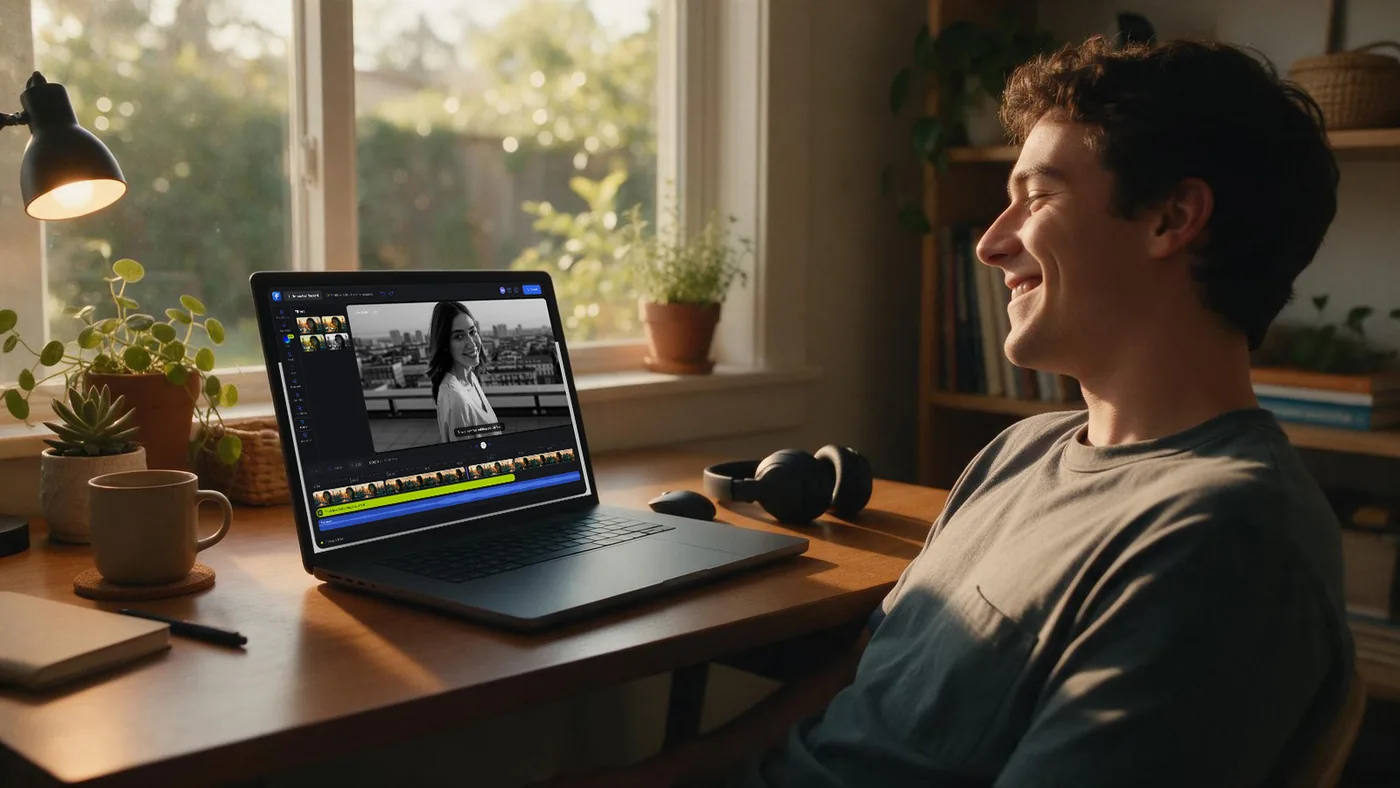
Make Online Course Videos
Record your screen and webcam, cut the mistakes, and add captions to every lesson, all in your browser. This is a video editor for course creators, so you can spread knowledge easier, and faster. Works straight in your browser, no download needed.
Start Recording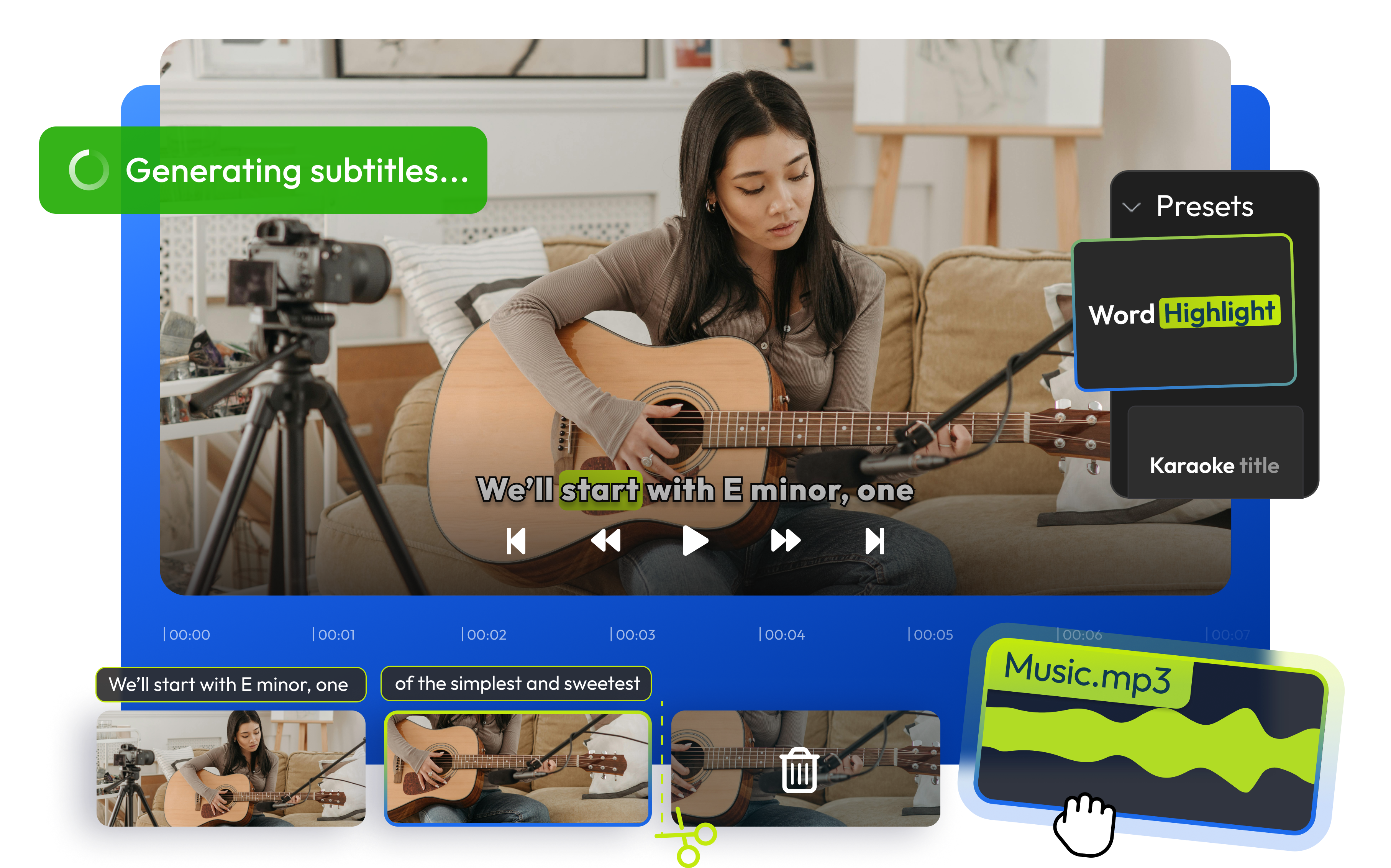


How to Make an Online Course Video From Start to Finish
Record or Import Your Footage
Record your screen, webcam, and microphone at the same time using Flixier's online screen recorder, or import a lesson you've already filmed. Zoom Cloud integration lets you bring a recorded class straight over without downloading it first.
Trim and Arrange on the Timeline
Cut out mistakes, dead air, and anything you don't want students to see. Drag your clips into order on the timeline, and split lessons into separate sections if one recording covers more than one topic.
Add Visuals and Diagrams
Drag images and secondary video clips directly onto the timeline to keep lessons visual. Use animated title cards to mark new sections so students can follow your structure at a glance.
Caption Your Lesson
Right-click your video on the timeline and select Generate Subtitles using Flixier's auto subtitle generator. Captions come out fully editable, so a misheard technical term is a quick fix.
Export Lesson by Lesson
Export each finished lesson as its own file, ready to upload wherever you host your course, or send it straight to YouTube, Vimeo, or another cloud storage from the export screen.
Built for Recording and Editing Course Videos

Record Screen and Webcam Together
Capture your screen, camera, and voice in one take, so you don't need a separate recorder before you can start editing.

Keep Every Lesson On-Brand
Use customizable title cards, consistent transitions, and a keyframe system to zoom in on the parts of your screen students need to see clearly.

Import Zoom Classes Directly
Bring a recorded Zoom class into Flixier through Zoom Cloud integration and turn it into a polished lesson without downloading and re-uploading the file yourself.

Caption for Accessibility
Add subtitles to every lesson so students can follow along without sound, or catch something they missed the first time. You can translate courses in over 100 languages.

Built for However You Teach
Whether you're recording a science-based course, a corporate training series, a one-on-one tutoring session, or a self-paced tutorial, the same record-trim-caption-export workflow applies.

Edit Without Installing Anything
Everything runs in the browser and renders in the cloud, so a long lesson recording doesn't slow down your laptop the way a locally installed editor would.
Unlike any tool you've used before


I wanted to be able to teach a lesson on Stop-Animation and found Flixier. This online free program was extremely easy to use, implement, and integrate into my 9-12th grade tech classes. The projects turned out great and were easy to export. I liked having multiple ways to upload pictures. The software was also easy to understand.

How to Choose a Tool for Course Videos
Editor or All-in-One Platform?
Decide whether you need a place to host, sell, and deliver your course, or just the video production step. Flixier handles recording and editing; it isn't a course hosting platform, so you'll still need one of those separately.
Browser or Installed App?
Desktop editors lean on your laptop's own processing power, so exporting a long lesson can leave your machine crawling. Since Flixier renders in the cloud, performance stays consistent no matter what device you're editing on.
Manual or Automatic Captions?
If a tool only supports manually typed captions, you're transcribing every lesson by hand. Check whether it can auto-generate and let you edit them instead.
Free Plan or Paid Subscription?
Whether it's export minutes, resolution, or watermarks, any free plan comes with limits. Make sure to check out the limitations and decide if your needs would rather benefit from upgrading.
Frequently
Asked
Questions
Yes. Flixier lets you record your screen, webcam, and microphone together in one take, so you can film a lesson with your face and your slides or software visible without a separate recording app.
No. Flixier runs entirely in your browser, so you can record, edit, and export lessons on Windows, Mac, or Chromebook without downloading or installing software.
Link your Zoom and Flixier accounts, then import your Zoom Cloud recordings directly into a project. From there, trim, caption, and export the class as a finished lesson using Flixier's browser-based editor.
Yes. Generate subtitles automatically from the timeline, then edit the text or timing directly if anything needs correcting. You can also translate captions into other languages to reach a wider audience.
Yes. Flixier's free plan includes limited minutes of video export and subtitles per month, with a Flixier watermark and 2GB of storage cap. Paid plans remove the watermark and raise the export, resolution, and storage limits.
Related AI Transitions
Articles, tools and tips
GIF Editor
Online Subtitle Editor
Add Image To Video
Add and Translate Subtitles
Compress Videos Online
Trim a Zoom recording
Cut Video
Green Screen Videos
Online Voice Recorder
Convert Audio to Text
YouTube Shorts Maker
Create Split Screen Videos Online
Voice Maker
GIF to Video
Promo Video Maker Online
Twitch Videos
Add Subtitles to Videos
Censor Videos
Loop Videos Online
Twitter Video Editor
Trailer Maker
Picture in Picture Videos
Online Video Filters
Blur or Pixelate Videos
Speed Up/Down Videos
Video Safe Zones for Social Media
Add Stock Footage to Videos
How to make a video online
How to Make a Slideshow Video With Music
Start Making Your Course Videos Today
Record your first lesson, trim out the mistakes, and export it captioned and ready to upload. Try it on the free plan, no card required.