Announcements
Find out about our latest product changes as we continue improving Flixier to enable your team to make amazing videos
Brand NEW Recording Workflow
We have completely reworked the screen recording experience in Flixier to allow more flexibility and make it easier and faster for you to edit your captured videos. Here’s what’s new:
Adjust the layout AFTER recording
Your screen and camera are now captured on two separate video tracks, so you’re no longer locked into one layout. 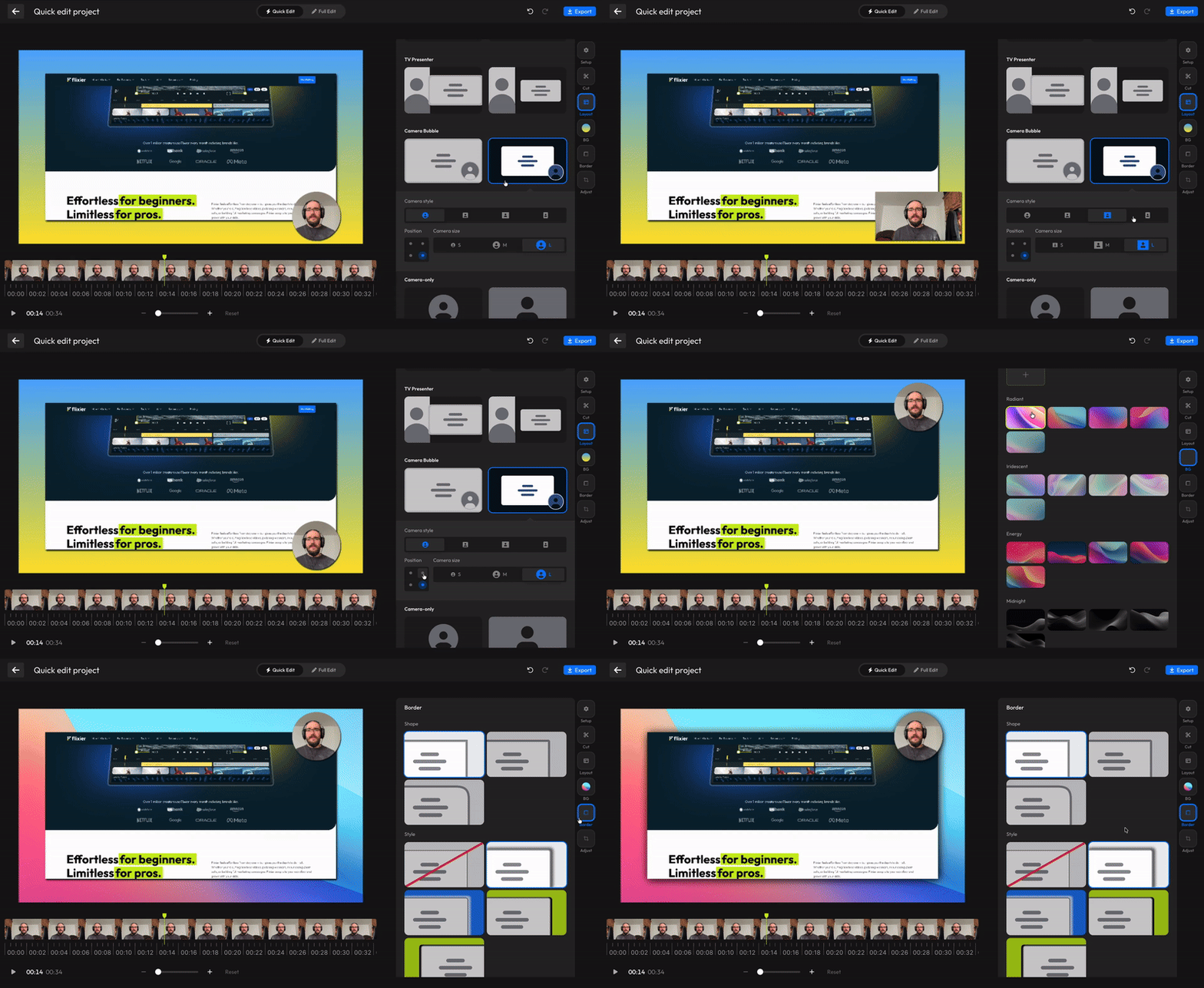
After you’re done recording your video, you can freely switch between more than 10 different split-screen or picture-in-picture layouts to see which one fits your video the best.
Quick Edit
When you’re done recording a video, you’ll be taken to the Quick Edit interface, which helps you put together professional-looking screen recordings in seconds. Here, you can:
- Cut by text - Cut out silences, filler words, and mistakes just by editing the transcript. This uses the same AI text editor you’re familiar with from regular projects.
- Edit the layout - Choose between different layouts for your webcam and screen recording.
- Change the background - Pick a new background for your recording, or upload a custom one and save it as part of your Brand Kit.
- Crop and adjust the camera - Crop your webcam feed using a new, intuitive interface.
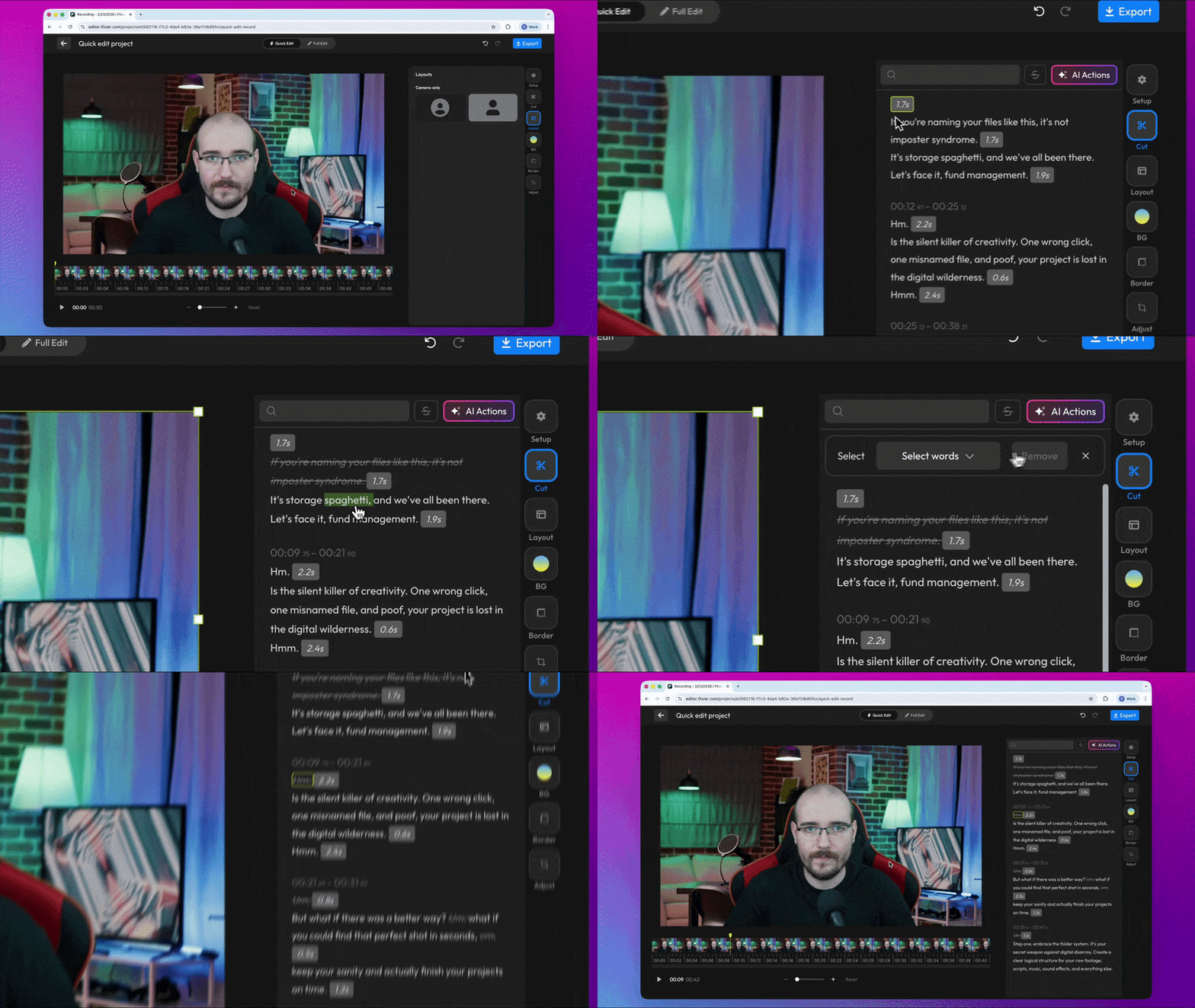
And, of course, if you want more control, you can always switch over to Full Edit mode to edit the video just like a regular Flixier project.
Because of all these fundamental changes, we’ve also moved the Record option outside of the Import menu. Recordings are now their own project type, and you can create a new one by hitting the Record button at the top of the dashboard.

finished videos