Announcements
Find out about our latest product changes as we continue improving Flixier to enable your team to make amazing videos
Neural Text to Speech and more improvements
Announcement
Neural Text to Speech 🎉😍🥳
We are very happy to announce our new Neural Text to Speech implementation. In Flixier you can now paste a text and have our AI read-it out loud with human-like accuracy.
We know that not everyone is comfortable talking in front of a microphone and we hope this will go a long way helping you create more videos.
Improvements
Check your plan reset date - go to your Dashboard -> Billing and Plans to see when your Publish time will reset
fix
Bug Fix - Show correct timeline thumbnails for videos longer than 2 hours
1.27.19 Motion Titles are now easier to edit
announcement
Motion Title update 🥳🎉🎉
Another week another motion title update. Now you can edit motion titles directly from the video preview. Just select the Motion you want to edit and on the right side of the screen you will be able to change text, colors and fonts.
Smart Text Resize and Motion Features for News Reporting
announcement
Smart text resize for Motion Titles 🎉🥳😎
We are extremely happy to announce that from now on text will resize to fit Motion Titles automatically. No more cut-off text or having to come up with shorter titles.
P.S. If you want to take advantage of resizable Motion Titles you will need to replace the old ones in your projects with the new ones.
Motion Titles for News reporting
Additionally we added 10 new titles that are perfect for news reporting. Check them out and keep an eye out for more News titles coming soon!
Styling update
Our old Motion Titles also got a refreshed look, we removed some elements and stylized others to give them a simpler more modern look.
Important Bug Fixes
improvement
Hey everyone, quick update fixing a few annoying bugs:
Bug Fix: sometimes a transition was added when aligning two clips one after the other
Bug Fix: sometimes transition didn't get added when it should
Bug Fix: colour pickers were not positioned correctly, not entirely visible at all times.
Bug Fix: track mute didn't work when adding an item after muting the track.
1.27.17 - Project History
Go back in time!
Ever wished to check previous versions of your project and see if the changes you've made actually made a difference?
You can do that now with Flixier in a few clicks. Even more you can also restore an older version of a project and continue working on it if you decide it showed better promise of something great.
1.27.16 - Create faster with BrandKit
ANNOUNCEMENT 🎈🎉🥳
Hello everyone!
We are extremely happy to announce our new BrandKit feature.
You can now go in your dashboard and you will find a new BrandKit tab. When you click it you will go into a new section where you can set custom colours and fonts and then use them all over Flixier to easily create content that fits with your brand.

Keep making great content!
1.27.15 - 10th of February
ANNOUNCEMENT 🎈🎉🥳
Improved Timeline features
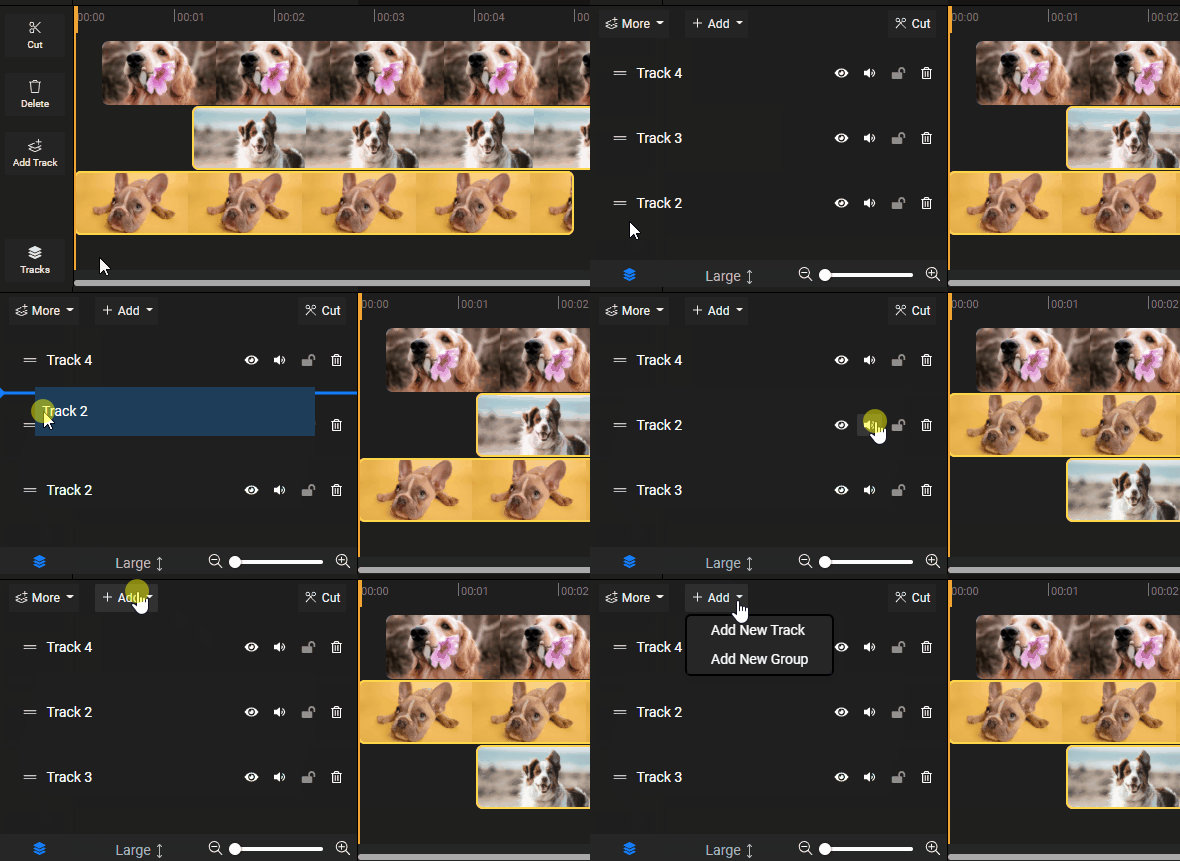
Our timeline is now more intuitive to use, if you didn't do this already go ahead and click the Tracks button on the lower left side of the screen to checkout the changes.
Each Track now has a handle you can use to drag and re-organize tracks and you can also mute an entire audio track.
Adding media to an empty timeline is now easier too, thanks to a new timeline detection system.
Adding a new Track or Group is also more intuitive, just click the "+Add" button and pick your choice.
1.27.14 - 30th of January
ANNOUNCEMENT 🎈🎉🥳
Audio Equalizer (EQ)
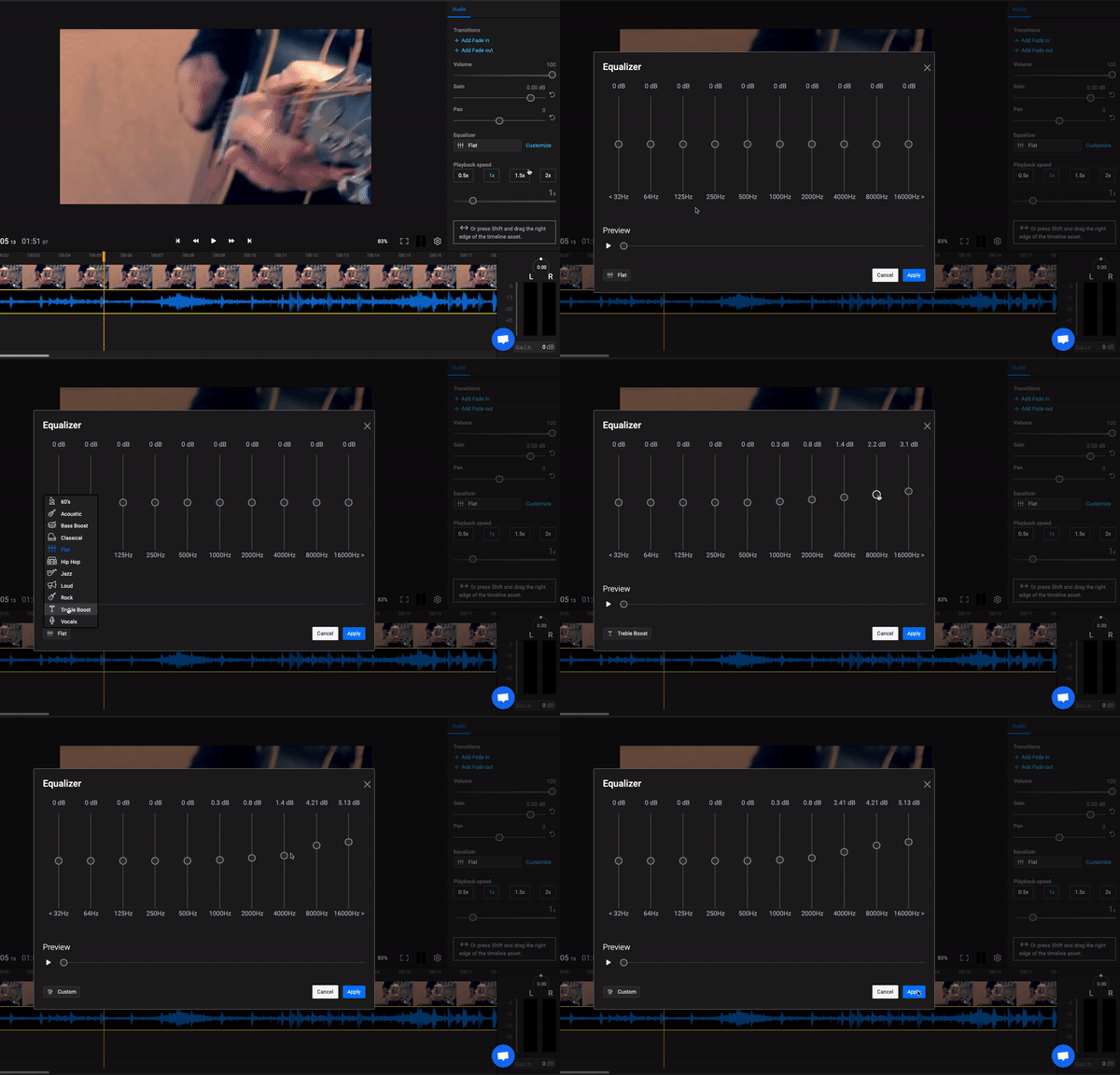
Hello content creators! We are supper happy to announce our brand new Audio Equalizer. You can now easily tune and improve your audio with ready to use presets in the Equalizer dropdown list, including 60's, Acoustic, Bass Boost, Hip Hop, Jazz, Loud, Rock, Treble Boost, Vocals, and Custom.
If you feel adventurous go ahead and click the Customize button and access the Custom Equalizer options to further adjust the gain by dragging the sliders up or down.
Check it out by clicking on an audio clip in the timeline and look for Equalizer under the Audio properties in the Inspector.
Improvements
You can now mute the entire track
1.27.13 - 21st of January
ANNOUNCEMENT 🎈🎉🥳
Audio Gain and Pan
You can now increase the volume of your audio in Flixier by using our new Gain feature. Even more, you can check your audio levels with our brand new volume meter. Click on the little volume meter under the video preview to open an expanded version for a better view.

Improvements
Showing thumbnails for Twitch Imports
Fixes
Fixed an issue where an an error was shown in the timeline when moving text or motion graphics.
1.26.13 - 24th of December
BIG ANNOUNCEMENT 🎈🎉🥳
Screen and Webcam recording
We are excited to announce that you can now record your screen and webcam at the same time. We are sure this will make your life a little easier while creating tutorials, online courses, trainings and many more.
Merry Christmas and a Happy New Year everyone!!! 🎉🍾🥂

finished videos