7 Best Video Editing Software for Mac in 2026 (Free & Paid)
Updated on December 15, 2025
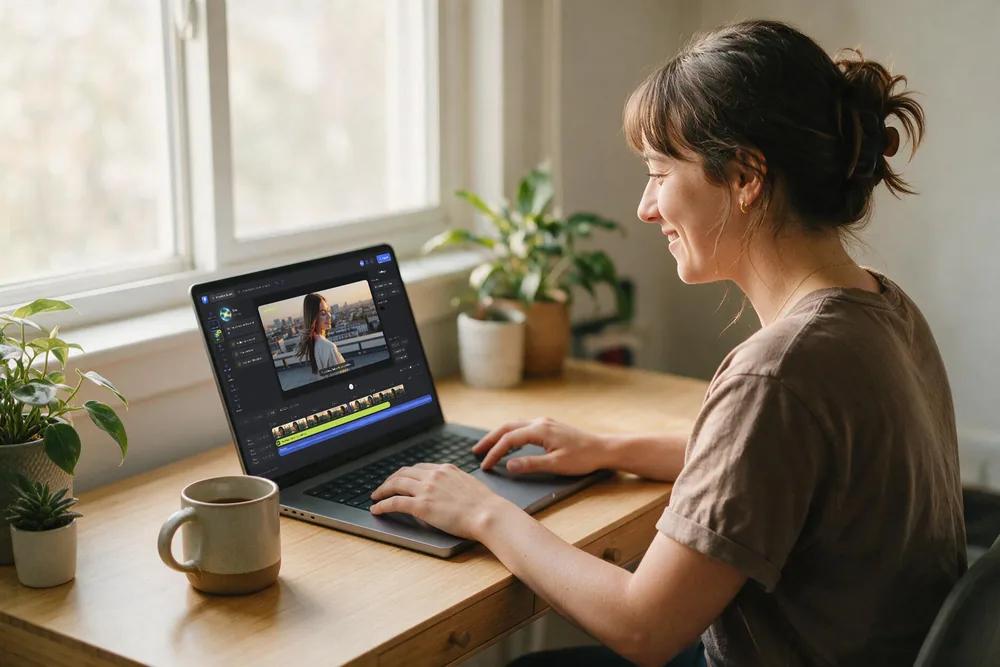
Table of contents
- Quick List: 7 Best Video Editing Software for Mac At a Glance
- Best Video Editing Software for Mac in 2026 – Detailed Reviews
- 1. Flixier - Best for Cloud-Based Editing With AI Tools
- 2. iMovie - Best for Simple, Native macOS Editing
- 3. Final Cut Pro — Best for Mac-Optimized Professional Editing
- 4. Adobe Premiere Pro - Best for Cross-Platform Professional Workflows
- 5. DaVinci Resolve - Best for Professional-Level Color Grading
- 6. Wondershare Filmora - Best for Quick, Polished Edits With Templates and AI Tools
- 7. CapCut for Mac - Best for Ready-to-Use Templates & Trending Social Content
- How to Choose the Right Mac Video Editor
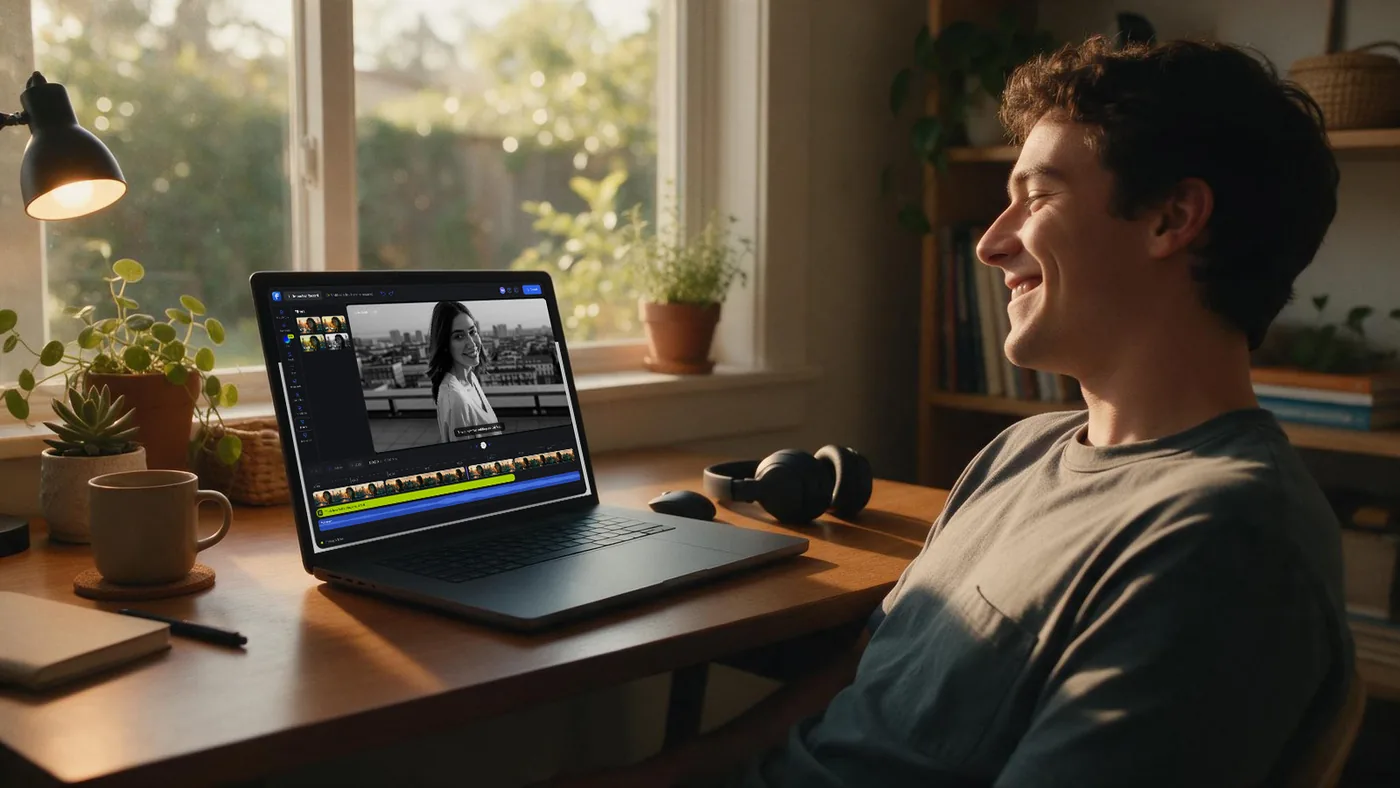
As a Mac user, the options for video editors are more than ever before. Picking the right one can make a big positive difference, not just in your editing workflow but in your pocket too. You've probably dealt with laggy playback, slow renders, stubborn watermarks, confusing interfaces, or subscription fees piling up. Mac users have an edge, as editors built for Apple silicon (M1, M2, M3) tap into your chip for faster rendering and smoother timelines. Or just skip the hardware game altogether with cloud-based editors, which handle rendering on their servers for fast exports regardless of your device.
This guide covers 7 of the best video editing options for Mac in 2026, free and paid. You'll get a quick comparison list, then detailed reviews with real pros and cons to help you pick based on your workflow, skill level, budget, and what you're actually creating.
If you just want to skim and pick a tool quickly, start with the list below.
Quick List: 7 Best Video Editing Software for Mac At a Glance
- Flixier – best for cloud-based editing with AI tools that still give you plenty of control
- iMovie – best for simple, native macOS editing with drag-and-drop timelines and seamless QuickTime integration
- Final Cut Pro – best for Mac-optimized professional editing with advanced timeline tools and HDR/360° support
- Adobe Premiere Pro – best for full-scale industry production with Adobe ecosystem integration and robust collaboration workflows
- DaVinci Resolve – best for pro-level color grading with node-based VFX and professional audio post-production
- Wondershare Filmora – best for quick, polished edits with large template libraries and AI-powered tools
- CapCut for Mac – best for trending effects and ready-to-use templates with motion tracking
Best Video Editing Software for Mac in 2026 – Detailed Reviews
1. Flixier - Best for Cloud-Based Editing With AI Tools
Flixier is a browser-based video editor that runs entirely in the cloud. No downloads, no installations, and no waiting for your Mac to render videos. It's useful for creators who need fast turnaround times: marketers, educators, business owners and anyone repurposing content.
Key features
- Cloud-powered rendering that exports in minutes on any Mac
- AI editing workflow with transcript-based editing, filler-word removal, and silence detection
- Creative AI tools including auto-subtitles (100+ languages), audio & video enhancers, and AI voiceovers
- One-tab creator workspace combining recording, editing, and publishing
Pros
- Works instantly in your browser with no installation
- Exports finish fast without taxing your Mac's CPU or battery
- AI accelerates repetitive tasks
- Good for teams with cloud-based collaboration
Cons
- Needs a stable internet connection for the smoothest experience

2. iMovie - Best for Simple, Native macOS Editing
iMovie is Apple's built-in, beginner-friendly editor perfect for quick personal videos, school projects, or simple YouTube uploads. It focuses on ease of use, clean visuals, and a drag-and-drop workflow.
Key features
- Simple drag-and-drop timeline
- Built-in titles, transitions, and themes
- Basic color and audio tools
- Royalty-free soundtrack library
- Optimized for macOS with smooth playback
Pros
- Free and pre-installed on most Macs
- Extremely easy to learn and navigate
- Great for basic edits, family videos, or simple YouTube clips
Cons
- Lacks advanced color, audio, and multi-track tools
- Not ideal for professional client work or long-form content

3. Final Cut Pro — Best for Mac-Optimized Professional Editing
Final Cut Pro is Apple's pro-level editor known for speed, stability, and deep macOS integration. Optimized for Apple silicon, it delivers top-tier performance for YouTubers, filmmakers, and pros who want powerful tools without sacrificing speed.
Key features
- Magnetic Timeline for fast, intuitive editing
- Powerful color grading tools
- Multicam editing & advanced media management
- Massive plugin ecosystem
Pros
- Lightning-fast render and playback performance
- One-time purchase — no subscription
- Deep integration with Motion and other macOS tools
Cons
- Mac-only, limiting cross-platform collaboration
- Higher upfront cost

4. Adobe Premiere Pro - Best for Cross-Platform Professional Workflows
Premiere Pro remains the industry standard for agencies, film teams, and creators who need powerful tools and seamless integration with Adobe Creative Cloud. It's flexible, scalable, and built for collaborative, multi-tool workflows.
Key features
- Advanced color grading through Lumetri
- Professional audio mixing with integrated tools
- Tight integration with After Effects, Audition & Photoshop
Pros
- Extremely versatile for almost any production type
- The best cross-app workflow ecosystem available
- Widely used across professional environments
Cons
- Subscription only — can get expensive
- Heavier on system resources
- Steep learning curve for new editors

5. DaVinci Resolve - Best for Professional-Level Color Grading
DaVinci Resolve is the go-to editor for colorists, advanced YouTubers, and filmmakers who need studio-grade color control. Its all-in-one workflow spans editing, VFX, audio, and color in separate "pages."
Key features
- Industry-leading node-based color grading
- Fusion for VFX & motion graphics
- Fairlight for advanced audio post
- Multicam editing & HDR support
Pros
- Best color tools in the industry
- Extremely powerful free version
- Full post-production suite in one app
Cons
- Steeper learning curve than other editors
- Can be demanding on older Macs
- Some advanced tools require the paid Studio version

6. Wondershare Filmora - Best for Quick, Polished Edits With Templates and AI Tools
Filmora combines drag-and-drop simplicity with advanced features like custom animation paths and spreadsheet-to-chart visualization. It's ideal for creators making data-driven content, presentations, or videos with custom motion graphics.
Key features
- Large library of templates, effects, and transitions
- Clean, beginner-friendly interface
- Social-media-ready export presets
Pros
- Professional motion tracking included, no extra plugins
- Copy color grades from any image instantly
- View source footage and edits side-by-side
Cons
- Watermarks on free exports
- Subscription model can be confusing
- Lacks depth for advanced editing workflows

7. CapCut for Mac - Best for Ready-to-Use Templates & Trending Social Content
CapCut for Mac delivers fast, template-driven editing geared toward TikTok, Reels, and Shorts. It's designed for creators producing vertical, trend-driven content at scale.
Key features
- Vertical video templates & trending effects
- Stickers, sounds, and transitions optimized for social
- Direct publishing to TikTok & other platforms
Pros
- Free for most features
- Extremely fast for short-form content
- Trend-forward templates match current social styles
Cons
- Not ideal for long-form or multi-layer editing
- Limited pro-grade color/audio tools
- Not suited for high-end production work

How to Choose the Right Mac Video Editor
Picking the right editor comes down to a few key factors. Here's what actually matters:
Your experience level
If you're just starting out, you want something intuitive with templates, presets, or AI tools that get you started fast. Tools like iMovie, Flixier, and CapCut won't make you watch 10 tutorials just to export a video. If you're more advanced and need precise control over color grading, audio mixing, or multi-cam editing, look at Final Cut Pro, Premiere Pro, or DaVinci Resolve.
Type of content you create
Used to editing videos on your phone? CapCut is built for that. Creating long-form YouTube videos, tutorials, or narrative content? Consider Final Cut Pro, Premiere Pro, or DaVinci Resolve. For advanced motion graphics or intensive color grading workflows, these professional tools offer the control you need.
Hardware & performance
Apple silicon Macs (M1, M2, M3) handle video editing incredibly well, but heavier tools like Premiere Pro and DaVinci Resolve will push older or less powerful Macs to their breaking point. If you're on a MacBook Air or an older Intel Mac, cloud-based video editors work well because the rendering happens remotely, not on your machine. Lighter local tools like iMovie also work well. For intensive projects with traditional editors, aim for at least 16GB of RAM and fast SSD storage.
Budget & pricing model
Some tools are completely free, like iMovie that comes pre-installed and DaVinci Resolve's free version. Others offer free tiers to get started. Some require a one-time purchase like Final Cut Pro. Then there are subscriptions like Premiere Pro and some Filmora plans. Think about the long-term costs before making a final decision.
Ecosystem & workflow
Do you already use Adobe apps? Premiere Pro integrates seamlessly with After Effects and Photoshop. Deep in the Apple ecosystem? Final Cut Pro plays nicely with Motion and other Mac tools. Need fast workflows? Cloud-based editors like Flixier let you work without switching tools or re-uploading files. If your content lives in the cloud, your editor should too.
Content writer with over 8 years of experience in digital marketing. When she's not deep in the writing zone, you'll find her on coffee dates with friends, writing poems, or taking photographs on film. Because all the best stories need a little caffeine, creativity, and color.