14 No-Watermark Video Editors in 2026 (Free & Paid Options)
Updated on February 23, 2026
Table of contents
- Quick List – Best No-Watermark Video Editors in 2026
- How to Choose a No-Watermark Video Editor
- Comparison Overview – No-Watermark Video Editors
- Best Video Editing Software with No Watermark – Detailed Reviews
- Flixier
- DaVinci Resolve
- iMovie
- Clipchamp
- CapCut
- VSDC Free Video Editor
- Shotcut
- OpenShot
- HitFilm
- Lightworks
- Kdenlive
- Blender Video Editor
- Adobe Premiere Pro
- Final Cut Pro
- Conclusion
Creating high-quality videos is easier than ever, but one common hurdle still trips up creators: watermarks. Whether you’re making content for social media, client projects, or personal portfolios, watermarks can make your videos look unprofessional and cheap.
This guide is all about video editing software that lets you export without watermarks. That includes tools that are completely free, as well as freemium and paid options where the watermark is removed once you upgrade.
Here’s what you’ll find in this article:
- 14 video editing tools with no watermark across online, desktop, and mobile platforms.
- Detailed breakdowns of features, pros, cons, pricing
- Guidance on choosing the right tool based on use case, ease of use, platform, and cost.
If you just want a quick overview of the best editors you can use right now, scroll down to our quick list of top no-watermark video editors.
Quick List – Best No-Watermark Video Editors in 2026
- Flixier – Browser-based video editor with no watermark on paid plans, built for speed, cloud rendering, and effortless collaboration. Ideal for creators, teams, and businesses who want clean exports without installs, powerful tools that run in the browser, and fast publishing to social platforms.
- DaVinci Resolve – Desktop editor for Windows, macOS, and Linux with a free no-watermark version, best known for advanced color grading and professional post-production workflows rather than speed or simplicity.
- iMovie – Free editor for Mac and iOS with no watermark, focused on basic editing and templates for Apple users who want something simple and familiar.
- Clipchamp – Browser-based and Windows editor with no watermark on supported exports, designed mainly for quick, template-driven videos rather than full creative control.
- CapCut – Online, desktop, and mobile editor with no watermark on most exports, optimized for short-form social content and trend-based editing.
- VSDC Free Video Editor – Windows-only editor that remains watermark-free on the free plan, offering advanced tools at the cost of a less intuitive interface.
- Shotcut – Free, cross-platform editor with no watermark, suited for users who want manual control and format flexibility, but without guided workflows.
- OpenShot – Open-source, cross-platform editor with no watermark, best for very basic edits rather than polished or professional projects.
- HitFilm (Free) – Editor and VFX tool with no watermark on supported exports, appealing to users who want effects-heavy projects, though it comes with a steeper learning curve.
- Lightworks – Professional-style editor with a free no-watermark tier, offering solid editing tools but strict export limitations unless you upgrade.
- Kdenlive – Open-source editor with no watermark, powerful for experienced users but less friendly for beginners and inconsistent across systems.
- Blender Video Editor – Completely free with no watermark, useful if you already work in Blender, but too complicated to navigate for straightforward video editing.
- Adobe Premiere Pro – Paid industry-standard editor with no watermark during an active subscription, designed for high-end production environments, not fast or lightweight workflows.
- Final Cut Pro – macOS-only professional editor with no watermark, optimized for Apple hardware but limited to one platform and a higher upfront cost.
How to Choose a No-Watermark Video Editor
Picking the right tool depends on your goals, budget, and workflow. Here are the key factors to consider:
Free vs Paid
- Truly free: Open-source or free-tier tools with no watermark (e.g., DaVinci Resolve, Shotcut).
- Freemium: Free plans may add watermarks; upgrading removes them (e.g., Flixier, Clipchamp).
- Paid only: Professional tools require a subscription or one-time license (e.g., Premiere Pro, Final Cut Pro).
Online vs Desktop Editors
- Online tools: Great for low-spec machines, Chromebooks, or collaborative projects. Cloud rendering allows fast exports (e.g., Flixier, Clipchamp).
- Desktop editors: Ideal for offline work, heavier projects, and advanced features (e.g., DaVinci Resolve, Adobe Premiere Pro).
Ease of Use vs Power
- Beginner-friendly: Drag-and-drop interfaces, templates, guided workflows (iMovie, CapCut).
- Advanced tools: Multi-track timelines, VFX, color grading, audio mixing (DaVinci Resolve, Premiere Pro).
Pricing & Long-Term Cost
- One-time licenses: Pay once, no recurring fees (Final Cut Pro).
- Subscriptions: Recurring cost for updates and exports (Adobe Premiere Pro, Flixier paid plans).
- Free tools: No cost, but may have limited features or steeper learning curves.
Ratings and Reputation
- Check G2, Capterra, or Trustpilot for stability, support quality, and real user feedback before committing.
Comparison Overview – No-Watermark Video Editors
Tool | Platform | Watermark Policy | Pricing | Ease of Use | Best For |
| Flixier | Online | No watermark on paid plans | Free + paid | Beginner → Intermediate | Fast editing, teams, social & business videos |
| DaVinci Resolve | Windows / macOS / Linux | Free with no watermark | Free / Paid Studio version | Intermediate → Advanced | Professional editing & color grading |
| iMovie | macOS / iOS | Free with no watermark | Free | Beginner | Simple videos for Apple users |
| Clipchamp | Online / Windows | No watermark on supported exports | Free + paid plans | Beginner | Quick social and business videos |
| CapCut | Online / Desktop / Mobile | No watermark on most exports | Free + paid plans | Beginner | Short-form, social-first content |
| VSDC Free Video Editor | Windows | Free with no watermark | Free / Pro upgrade | Intermediate | Budget-friendly Windows editing |
| Shotcut | Windows / macOS / Linux | Free with no watermark | Free | Intermediate | Flexible open-source editing |
| OpenShot | Windows / macOS / Linux | Free with no watermark | Free | Beginner | Basic editing and quick projects |
| HitFilm | Windows / macOS | No watermark on supported exports | Free + paid plans | Intermediate | Effects-heavy YouTube content |
| Lightworks | Windows / macOS / Linux | No watermark (export limits) | Free + paid plans | Advanced | Professional-style editing |
| Kdenlive | Windows / macOS / Linux | Free with no watermark | Free | Intermediate | Open-source power users |
| Blender Video Editor | Windows / macOS / Linux | Free with no watermark | Free | Advanced | 3D + video workflows |
| Adobe Premiere Pro | Windows / macOS | No watermark with subscription | Subscription | Advanced | Professional and agency work |
| Final Cut Pro | macOS | No watermark | One-time purchase | Intermediate → Advanced | Mac-based professional editing
|
Best Video Editing Software with No Watermark – Detailed Reviews
Flixier
Flixier is a modern, browser-based video editor built for creators, teams, and businesses that want fast, watermark-free exports without installing software. Because rendering happens in the cloud, it runs smoothly even on low-spec laptops and Chromebooks.
It’s a strong fit for social media videos, YouTube content, marketing assets, internal communications, and collaborative projects where speed and simplicity matter.
Key Features
- AI‑powered editing tools - start from prompts, translate audio, and speed up creative workflows.
- Cloud‑based multi‑track timeline - edit video, audio, text, and motion graphics right in the browser without heavy installs.
- Blazing‑fast cloud rendering - export videos quickly on even low‑spec devices while keeping your local machine free
- AI‑assisted subtitle and voice tools - auto‑generate captions and realistic voiceovers in multiple languages.
- Smart publishing workflows - export optimized formats to YouTube, TikTok, Instagram, and other platforms with one click.
Pricing & Watermark Policy
- Free plan: Limited exports and features
- Paid plans: Remove watermarks and unlock higher limits and advanced tools
Flixier’s watermark policy is straightforward: upgrade to export clean videos, with no hidden restrictions.
Pros
- No installs; works on almost any device
- Very fast exports
- Easy to learn but capable enough for serious work
- Excellent for teams and collaborative workflows
Cons
- Requires a stable internet connection

DaVinci Resolve
DaVinci Resolve is a professional desktop editor aimed at users who want deep control over editing, color, audio, and effects, even in a free tool.
Key Features
- Full non-linear timeline
- Advanced color grading
- Professional audio and VFX tools
Pricing & Watermark Policy
- Free version exports without watermarks
- Paid Studio version adds advanced features
Pros
- Extremely powerful for a free editor
- Used in professional environments
Cons
- Steep learning curve
- Requires a powerful computer

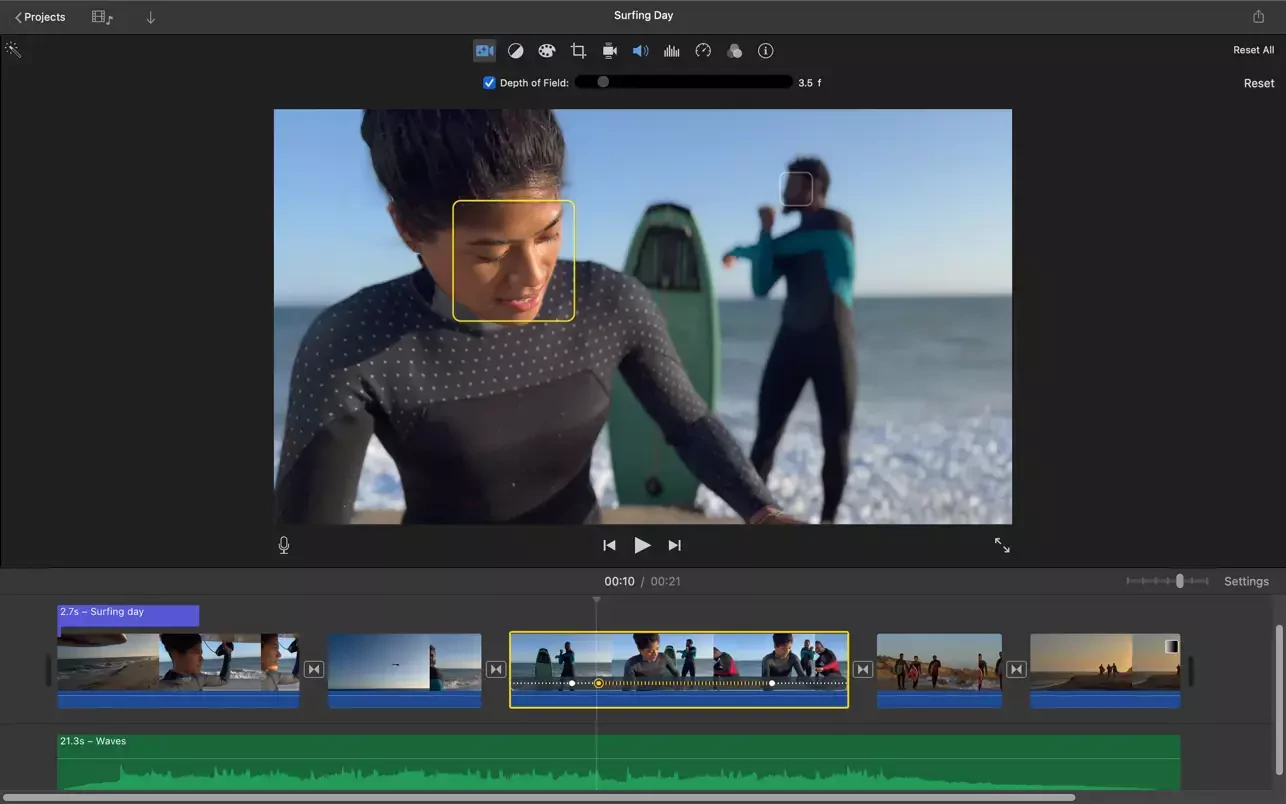
iMovie
iMovie is Apple’s free editor for macOS and iOS, designed for beginners who want simple, clean videos with minimal setup.
Key Features
- Drag-and-drop timeline
- Built-in themes and transitions
- Seamless Apple ecosystem integration
Pricing & Watermark Policy
- Free for Apple users
- No watermark on exports
Pros
- Very easy to use
- No additional cost
Cons
- Limited advanced features
- Apple-only

Clipchamp
Clipchamp is a browser-based and Windows editor focused on quick, template-driven video creation, mainly for business and social content.
Key Features
- Pre-made templates and stock media
- Simple timeline editing
- Social-friendly export presets
Pricing & Watermark Policy
- Free and paid plans
- No watermark on supported exports
Pros
- Beginner-friendly
- Works in the browser
Cons
- Limited creative control
- Some assets require upgrading

CapCut
CapCut is a social-first editor built for short-form, trend-driven content like TikTok, Reels, and Shorts.
Key Features
- Auto-captions and AI tools
- Trending effects and music
- Vertical video optimization
Pricing & Watermark Policy
- Free editing with no watermark on most exports
- Paid plans unlock premium assets
Pros
- Excellent for fast social videos
- Very easy to learn
Cons
- Not ideal for long-form or client work
- Limited customization

VSDC Free Video Editor
VSDC is a Windows-only editor offering a feature-rich free version without watermarks.
Key Features
- Non-linear timeline
- Motion tracking and effects
- Broad format support
Pricing & Watermark Policy
- Free version has no watermark
- Paid upgrade improves performance
Pros
- No watermark on free plan
- Powerful for a free desktop tool
Cons
- Dated interface
- Higher learning curve

Shotcut
Shotcut is an open-source editor for users who want control and flexibility without paying, and don’t mind a utilitarian interface.
Key Features
- Multi-track timeline
- Wide codec and format support
- Custom filters
Pricing & Watermark Policy
- Completely free
- No watermark
Pros
- Flexible and capable
- Cross-platform
Cons
- Unpolished UI
- No templates or guided workflows

OpenShot
OpenShot is a basic open-source editor best suited for very simple projects.
Key Features
- Drag-and-drop editing
- Basic transitions and titles
Pricing & Watermark Policy
- Free and open source
- No watermark
Pros
- Easy for beginners
- Completely free
Cons
- Limited features
- Performance can vary

HitFilm
HitFilm combines video editing with VFX tools, making it appealing for effects-heavy YouTube content.
Key Features
- Timeline editing with compositing
- Built-in visual effects
- Motion presets
Pricing & Watermark Policy
- Free tier with no watermark on supported exports
- Paid plans unlock more tools
Pros
- Strong VFX capabilities
- Good for creative projects
Cons
- Can feel overwhelming
- Some export limits

Lightworks
Lightworks is a professional-style editor with a free tier, aimed at users who want to learn traditional editing workflows.
Key Features
- Precision trimming tools
- Professional timeline layout
Pricing & Watermark Policy
- Free version has no watermark
- Export options limited unless upgraded
Pros
- Pro-style editing experience
Cons
- Steep learning curve
- Free version restrictions

Kdenlive
Kdenlive is a powerful open-source editor popular with Linux users and experienced editors who want full control without licensing costs.
Key Features
- Multi-track timeline
- Keyframe-based effects
Pricing & Watermark Policy
- Free and open source
- No watermark
Pros
- Very capable for advanced users
Cons
- UI can overwhelm beginners
- Occasional stability issues

Blender Video Editor
Blender’s video editor is part of its full 3D suite and best for users who already work with Blender.
Key Features
- Basic timeline editing
- Integration with 3D and compositing tools
Pricing & Watermark Policy
- Completely free
- No watermark
Pros
- Extremely powerful ecosystem
Cons
- Overkill for basic editing
- Not beginner-friendly

Adobe Premiere Pro
Premiere Pro is an industry-standard editor built for professional production and agency workflows.
Key Features
- Advanced editing, color, and audio tools
- Adobe Creative Cloud integration
Pricing & Watermark Policy
- Subscription-based
- No watermark during active subscription
Pros
- Highly flexible
- Professional output
Cons
- Ongoing cost
- Heavy system requirements

Final Cut Pro
Final Cut Pro is Apple’s professional editor, optimized for macOS and Apple silicone.
Key Features
- Magnetic timeline
- Advanced color tools
Pricing & Watermark Policy
- One-time purchase
- No watermark on exports
Pros
- Fast and stable on Mac
- No subscription
Cons
- macOS only
- Higher upfront cost

Conclusion
Finding video editing software with no watermark doesn’t have to be frustrating. While many tools advertise themselves as “free,” they often add watermarks that limit how professional your final video looks.
If you want a fast, versatile, and flexible editor that works on almost any computer, Flixier stands out as a practical choice, especially for social content, business videos, and collaborative workflows. Power users may prefer desktop tools like DaVinci Resolve or Premiere Pro, while beginners can start with simpler options like iMovie or Clipchamp.
Before committing long term, pick one tool, test it with a small project, and always double-check export settings to confirm watermark behavior. Bookmark this guide so you can return to the comparison table and reviews when you’re ready to upgrade or switch tools.
Content writer with over 8 years of experience in digital marketing. When she's not deep in the writing zone, you'll find her on coffee dates with friends, writing poems, or taking photographs on film. Because all the best stories need a little caffeine, creativity, and color.