AI Product Video Generator
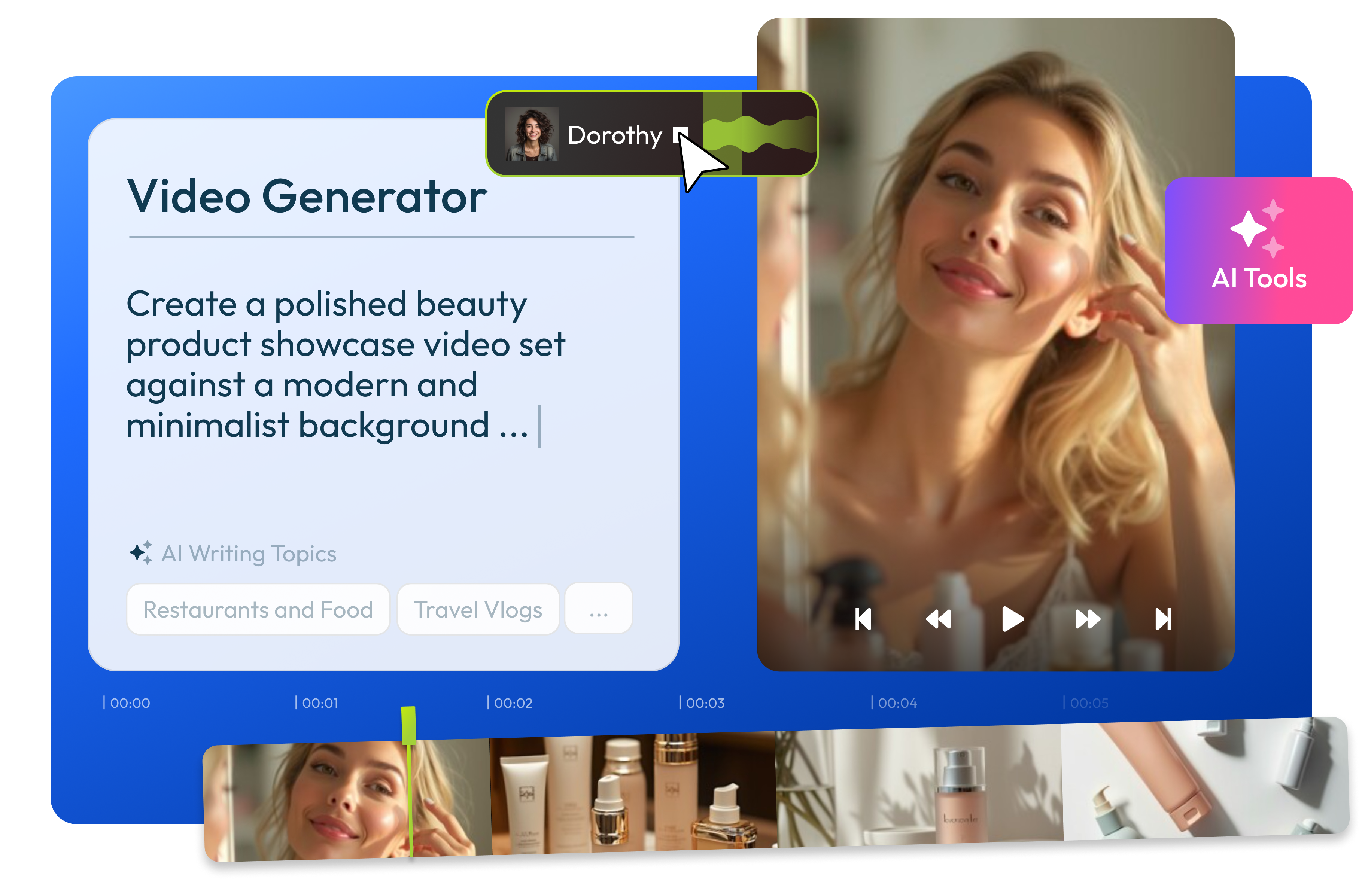
Describe your product and the scene you want to create, then choose the voice, length, and format. Generate a product video for an ad, launch, or social post and finish the edit directly in Flixier.
Over 500,000 creators use Flixier every day including brands like:





How to Create a Product Video With AI
Make Product Videos for Instagram, TikTok, and Facebook
Create Product Shots Without a Studio
Use Flixier’s product video maker to describe the setting, lighting, action, and camera movement you want. Create the product shots you need without setting up a new shoot.
Show What Makes the Product Useful
Combine the generated clip with your own footage, images, and text. Highlight a feature, show the product in use, or focus the video on one benefit or offer.
Make the Message Clear Without Sound
Generate captions for the voice-over and correct any mistakes. Add short on-screen text so viewers can understand the product while watching with the sound off.
Create a Version for Each Platform
Resize the product video for TikTok, Instagram, or Facebook. Reposition the product, logo, and text so important details remain visible in each format.
Everything you need to create and finish AI videos
Why Use Flixier to Create AI Product Videos
Test Different Product Looks
Change the prompt, switch the AI model, or describe another setting to explore a different direction. Test new product shots without arranging another filming session.
Brand Your Product Video
Add your logo, colors, fonts, product images, and music after generating the clip. Keep the creative AI scene while making the finished video recognizable as your own.
Edit the Generated Clip
Edit the product video on the timeline to trim unwanted sections, add text, adjust the audio, or combine it with footage you already have.
Review the Product Video Together
Share the project with your team or client and collect their feedback. Make the final changes in the same workspace before exporting or publishing the product video.
Still have questions?
We got you!
An AI product video generator turns a written description into a video showing a product in a setting or action you describe. You can then edit the generated clip, add branding, and prepare it for ads, launches, or social media.
Describe the product, setting, lighting, action, and camera movement you want. Choose an AI model, video length, and aspect ratio, then generate the clip and finish it in Flixier’s editor.
Yes, after generating the clip, add your existing product videos, images, logo, text, and music to the timeline. You can combine them with the AI-generated footage before exporting.
Flixier provides access to models from Veo, Kling, Wan, Seedance, Grok, and other AI model families. Available models and generation options may change as new versions are added.
Yes, you can start generating and editing product videos with Flixier’s Free plan. AI credits, generation options, and export limits depend on your plan.
Articles, tools and tips
Describe the product scene you need, generate the clip, and add your branding before sharing it online.