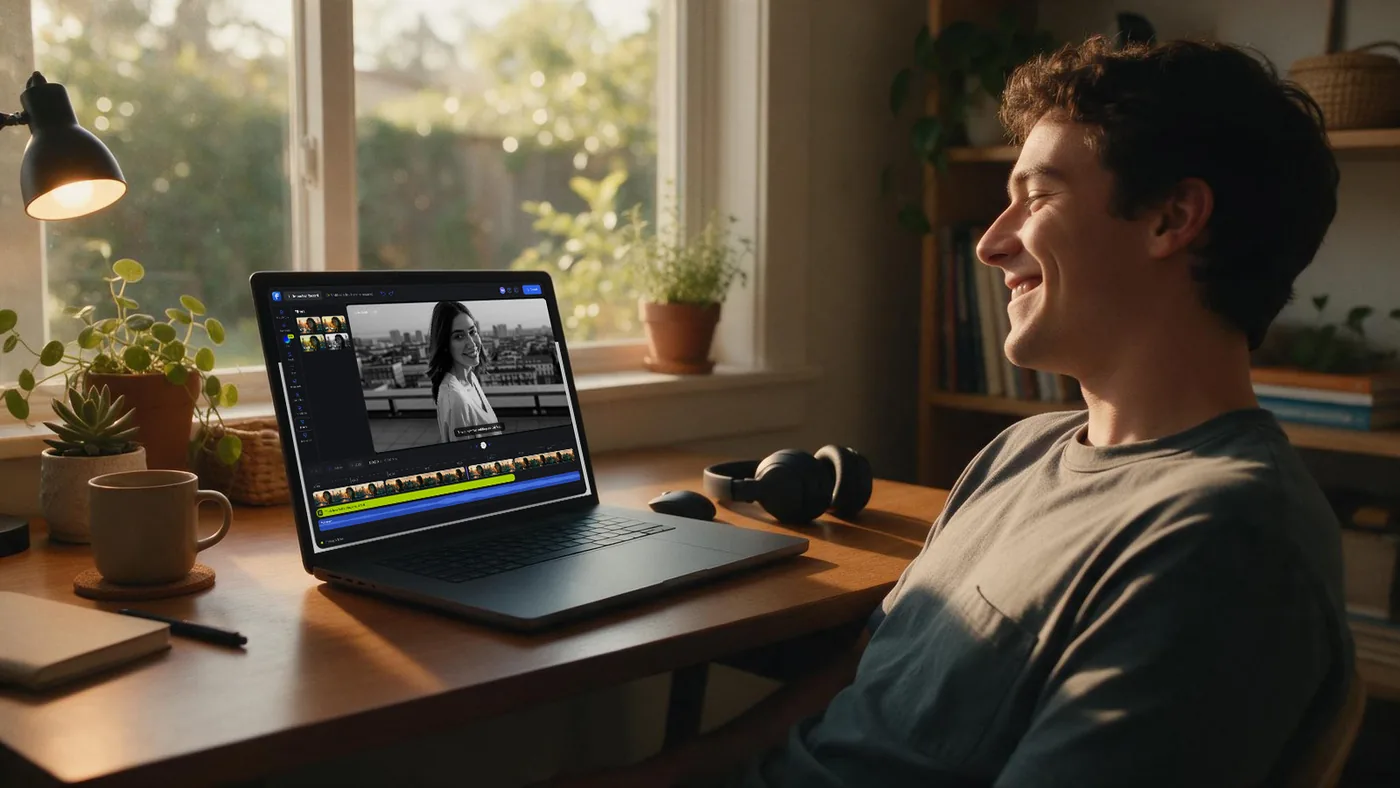
AI Color Matching from Image to Video
Elevate the look of your projects instantly with our professional AI color match video editor. This browser-based feature analyzes any reference image or cinematic clip and applies its exact color profile to your footage in seconds.
Over 500,000 creators use Flixier every day including brands like:





Achieve Visual Consistency with AI Color Grading
Effortlessly Color Grade Videos
Achieve a high-end cinematic appearance across your projects without spending hours behind an expensive console. When you use Flixier to color grade videos, artificial intelligence instantly aligns the tint, saturation, and contrast values of your source clips.
Match Colors from Your Browser
Skip the complexity of traditional post-production suites by using a centralized, responsive video coloring tool built directly inside your browser tab. Flixier samples color distribution and pixel data from any reference image or movie still.
Fine Tune Exposure
Maintain total artistic authority over your visual atmosphere with secondary sliders that offer precision refinement after the initial automation. Our intuitive sidebar gives you total freedom to adjust brightness, lift shadows, or deepen contrast.
Match Colors Across Clips From Different Cameras
Clips shot with different cameras or in changing light can look noticeably different in the same video. Add both clips to the timeline, select the one you want to match, and open Color Match. Choose From Timeline and pick a frame from the other clip as your reference. Fine-tune the result with the Color controls if needed.
How to Use Flixier’s AI Color Match Video Editor
Who this is for
Marketers
Ensure your promotional content matches your company's official brand guidelines.Harmonize b-roll footage with pre-approved corporate assets to maintain consistent messaging.
See How It WorksEducators
Podcasters
Social Creators
Unlike any tool
you've used before


I have over 11 years in the broadcast industry, building teleproductive facilities, using high-end editing equipment. And this is better than anything else I've used in my lifetime.

Still have questions?
We got you!
Flixier uses advanced neural networks to map the color distribution, contrast levels, and luminance data from a reference image or video frame. It then intelligently transposes that precise aesthetic profile onto your raw video tracks, neutralizing color mismatches in seconds.
Yes, absolutely. You can upload any standard image file, such as a movie screenshot or a professional photo, to serve as your color reference. The system reads the image profile and applies the exact mood, lighting style, and color palette directly to your video clip.
You can tweak the color saturation and exposure/contrast freely after applying an AI color grade to your clip.
Flixier supports all popular video, image, and audio formats, including (but not limited to) MP4, MOV, MKV, AVI, MP3, WAV, PNG, and JPEG.
Of course! You can upload a clip and add it to your timeline. Then, use the From Timeline option in the Color Match menu to choose a frame from your video as a reference.
You can export the generated color profile and save it to your computer as a 3D LUT file.
Articles, tools and tips
Master professional grading with Flixier’s AI color match video editor. Match references and export cohesive videos directly from your browser with cloud power.