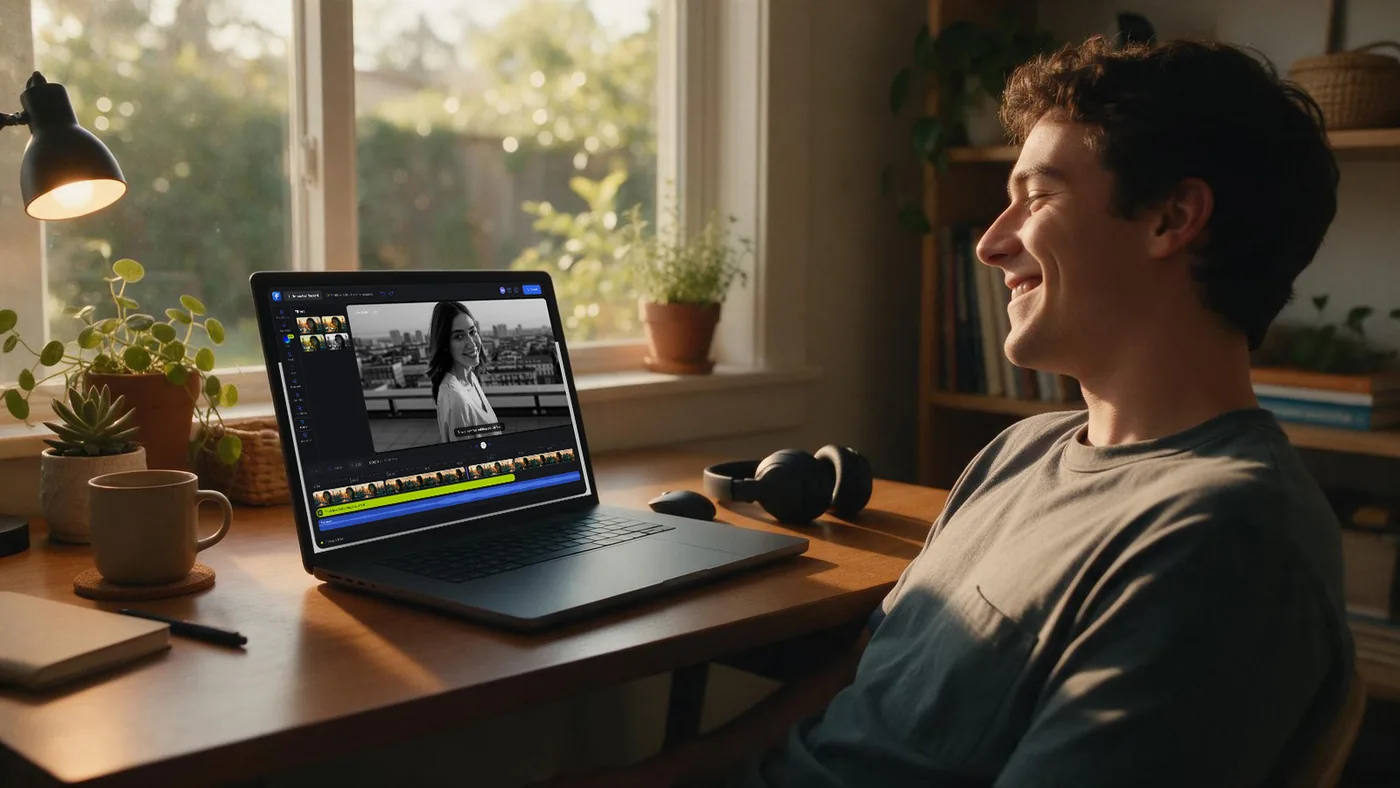
Remove Subtitles From Video
Hide burned-in subtitles with a blur or colored bar, or crop them out of the frame. Add new captions on top when needed, then export the finished video from your browser. No install needed, and it’s free to start.
Over 500,000 creators use Flixier every month, including brands like:
 Vodafone







How to Remove Subtitles From a Video
Upload Your Video
Upload the video from your computer or cloud storage, then add it to the timeline.
Hide the Existing Subtitles
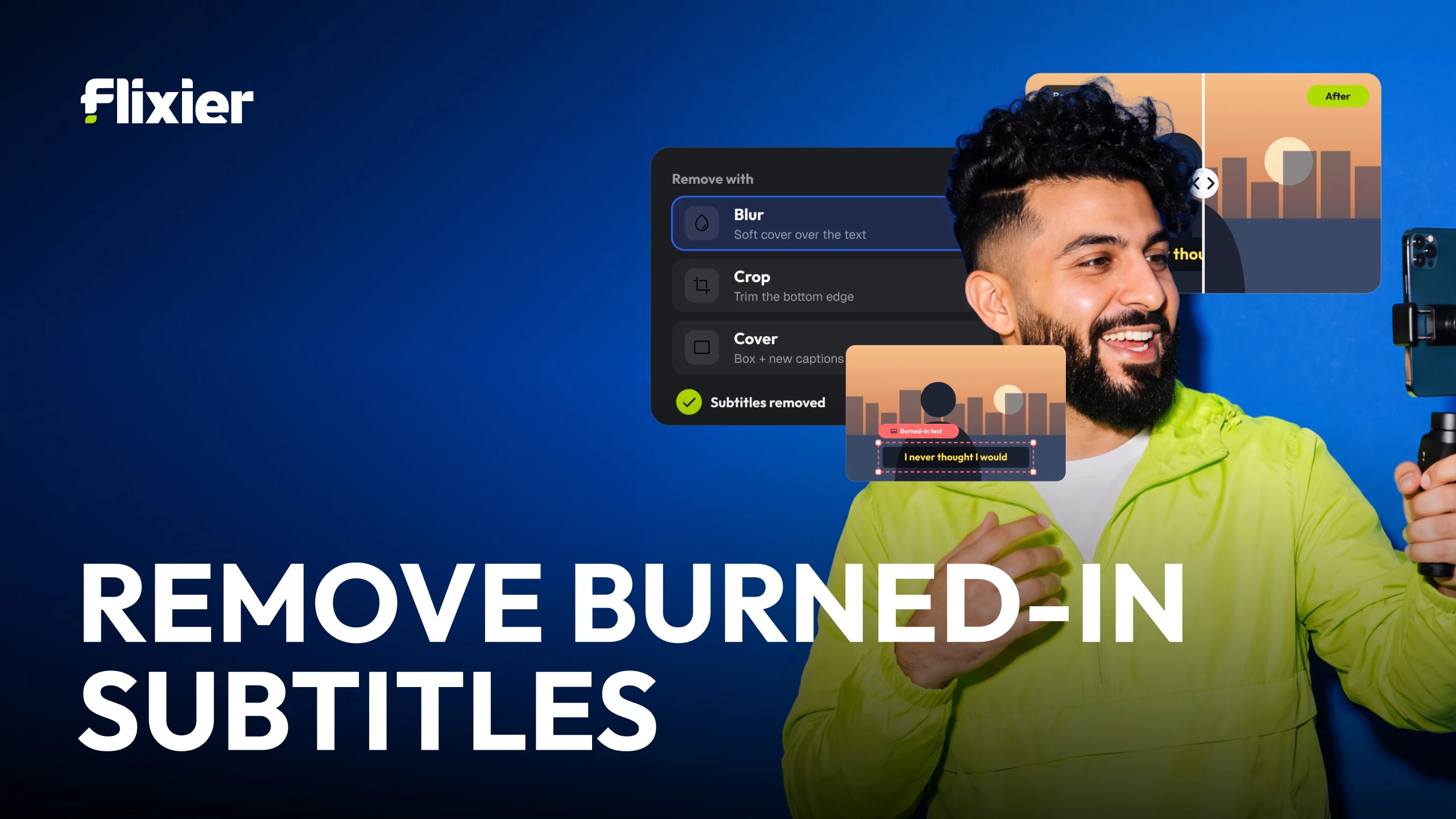
Place a blur or colored bar over the subtitle area, or crop the captions out when they sit close to the edge of the frame. Choose the method that works best for your footage.
Add New Subtitles and Export
Generate new subtitles from the spoken audio, then translate them if needed. Check the wording, timing, and position before exporting the finished video.
Three Ways to Hide Burned-In Captions in Flixier
Blur the Subtitle Area
When cropping would remove an important part of the shot, blur the subtitle area instead. Position the blur over the captions and keep the rest of the frame visible.
Cover Captions With a Color Bar
Place a color bar over the existing subtitles to hide them completely. Match it to the video or use it as a solid, clean background for the new captions you add on top.
Remove Captions From TikTok and Instagram Videos
If the captions appear close to the bottom of the frame, crop the video to remove that section. Reposition the remaining footage so the subject stays visible.
Replace or Translate the Old Subtitles
After hiding the original captions, generate new subtitles from the spoken audio. Correct any mistakes manually or translate the subtitles automatically if you need a version in another language.
Everything you need to create and finish AI videos
Why Use Flixier to Hide and Replace Subtitles
Style the New Captions Your Way
Change the font, color, size, position, and animation of the new subtitles. Make them easy to read and match the style of the video instead of copying the old captions.
Download the New Subtitles Separately
Need the captions for another platform or video? Download the new subtitle track as an SRT or VTT file, or keep the text directly on the exported video.
Make the Dialogue Easier to Hear
If the original recording is difficult to understand, improve the audio before adding new subtitles. Reduce distracting background noise and check that the speech remains clear.
Finish the Rest of the Edit
Keep working on the video after replacing the subtitles. Trim unwanted footage, add music or branding, adjust the frame, and export the updated version from the same project.
Still have questions? We got you!
Hardcoded subtitles are part of the video image, so they cannot be switched off or deleted like a separate caption track. In Flixier, you can hide them with a blur or color bar, or crop them out of the frame before adding new subtitles.
Upload the TikTok video or import it by pasting the link, then check where the captions appear. Cover them with a blur or color bar, or crop the subtitle area when it sits close to the edge of the frame. Preview the result before exporting.
Yes, after covering or cropping out the original subtitles, generate new captions from the spoken audio. Correct the text, adjust the timing, and position them where they are easy to read.
Yes, all you need to do is to generate the new subtitles, check the wording, and translate them into another language. Review names, specialist terms, and expressions before exporting the finished video.
OtherSubtitling Tools
Articles, tools and tips
Hide Old Subtitles and Add New Ones
Cover or crop out burned-in captions, then add, customize, or translate new subtitles in your browser.