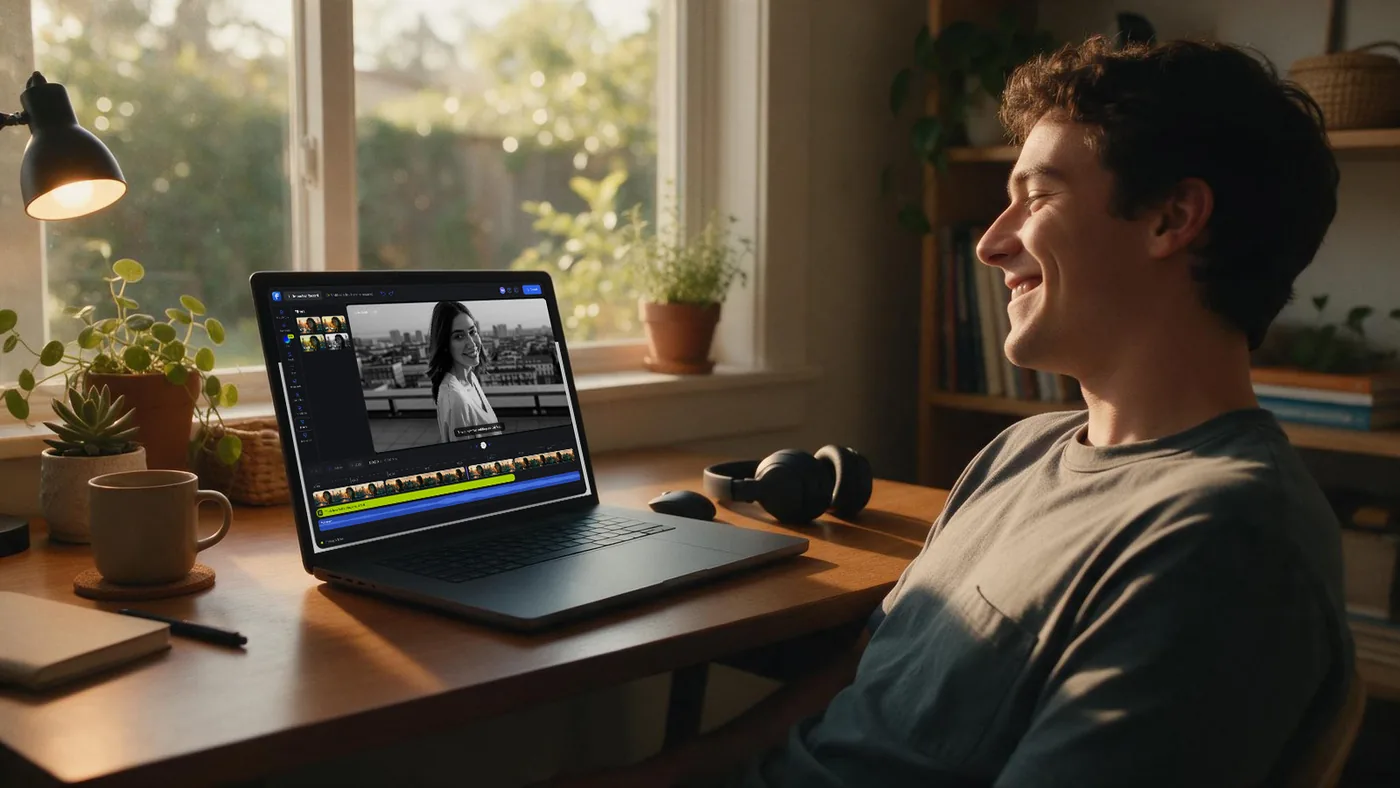
Add Text to YouTube Videos
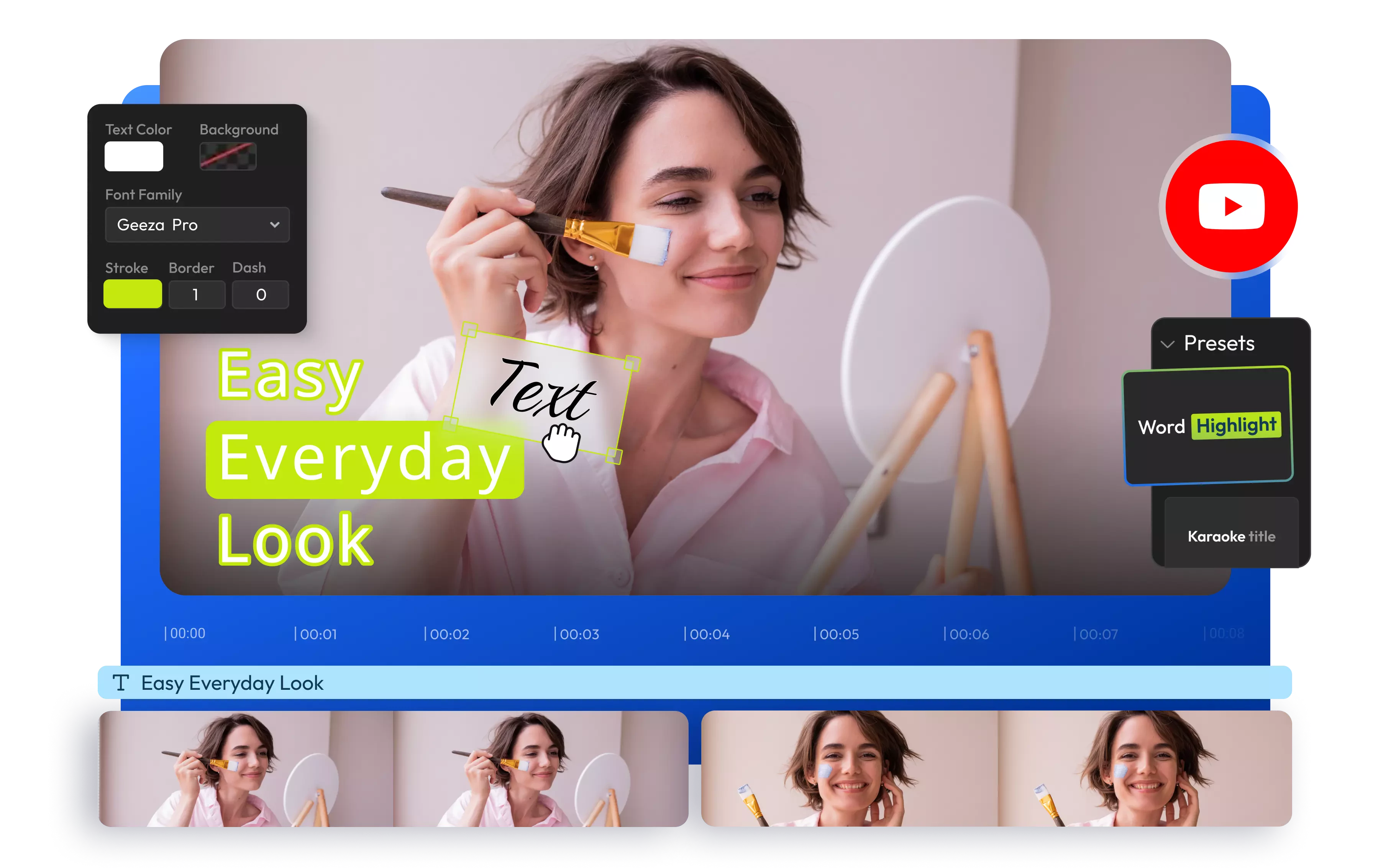
To add text to a YouTube video, paste the video link into Flixier, head to the Text tab, and drag on a title or type your own. Customize the font, color, and animation, then export or publish straight back to your channel.
Over 500,000 creators use Flixier every day including brands like:





How to Add Text to YouTube Videos
Everything You Need to Add Text to YouTube Videos
Import and Edit YouTube Videos
Simply copy the link to your YouTube video and paste it into Flixier to import the video quickly and start editing. Once you’ve finished adding text or making other video edits, you can give your video a new title and description, choose a thumbnail, and then publish it directly to your YouTube channel.
Add Text Overlays and Customize
Import your YouTube video into Flixier and add text easily with just a few clicks. Pick from over 1000 various fonts or upload your favorite font. Overlay text on your video clips, adjust its size and color, and add text animations, text backgrounds, or transitions. You can do all that from Flixier's user-friendly dashboard.
Auto-Generate Subtitles
Flixier’s video editor automatically recognizes the speech in your YouTube video and instantly transcribes it to text with high accuracy. Use our auto-subtitle generator to add subtitles to your YouTube video, translate them into other languages, or download it in various subtitle formats, from SRT files to TXT, VTT, STl, and other popular formats.
Caption Videos in Multiple Languages
Expand your audience and grow your YouTube channel with subtitles available in over 130 languages. After generating subtitles, you can instantly translate them into French, English, Hindi, Portuguese, and more. Make your YouTube video accessible and go worldwide with just a few clicks.
Everything you need to create and finish AI videos
Why Use Flixier to Add Text to Your YouTube Videos
Animate Text and Highlight Keywords
Enhance your audience's viewing experience by adding text animations to your YouTube content. Auto-sync subtitles with your video, then select individual words or even animate individual letters. You can adjust the font, size, color, and background to highlight specific keywords.
Edit YouTube Videos Online
Our browser-based YouTube video editor allows anyone to edit YouTube videos online from any device. There's no need for an app, just open Flixier’s video editor in your browser on a Chromebook, Windows PC, MacBook, or Linux computer. Cut, trim, and rearrange footage, enhance audio with AI, easily add text to YouTube videos, and then publish directly to your YouTube channel or other social media account.
Create Content Faster with AI
From YouTube thumbnails to profile pictures, logos, pie charts, and animated characters, our AI images and video generator can bring your concepts to life in high-quality. Transform your ideas into videos in various styles and aspect ratios. Choose from different models and generate thumbnails, B-roll, or entire clips!
Optimize Content for Other Platforms
Optimize your video content for YouTube, TikTok, or Instagram using Flixier's social media safe zones. Toggle safe zones on and off to make sure your YouTube video looks flawless across all platforms. Then, you can publish your work without any additional downloads or uploads.
Still have questions?
We got you!
Yes! You can use Flixier’s free tool to add text to YouTube videos online. Just copy your YouTube video link, paste it into Flixier’s video editor, and head over to the Text tab. You'll find plenty of options to add fun static text or eye-catching motion titles! Plus, you can even transcribe videos, translate subtitles, and personalize your desired text exactly how you want.
Absolutely! You can easily use Flixier to transcribe your YouTube videos into text. The great thing is that this transcript comes as a fully synchronized subtitle, which you can translate into more than 130 different languages. Not to mention, you can even create realistic AI voiceovers and save everything on your computer. Once you're all set, just hop into YouTube Studio and upload the subtitle file to your YouTube video.
It really depends on what you're looking to change! If the text is part of the YouTube video itself, you'll need to edit the video and reupload it. Flixier's YouTube video editing software makes that super easy! If you're thinking about the video title or description, just head over to your YouTube Studio, and you can edit it however you like.
Articles, tools and tips
Drop in a title, caption, or CTA, then publish straight back to your channel, all without leaving your browser.