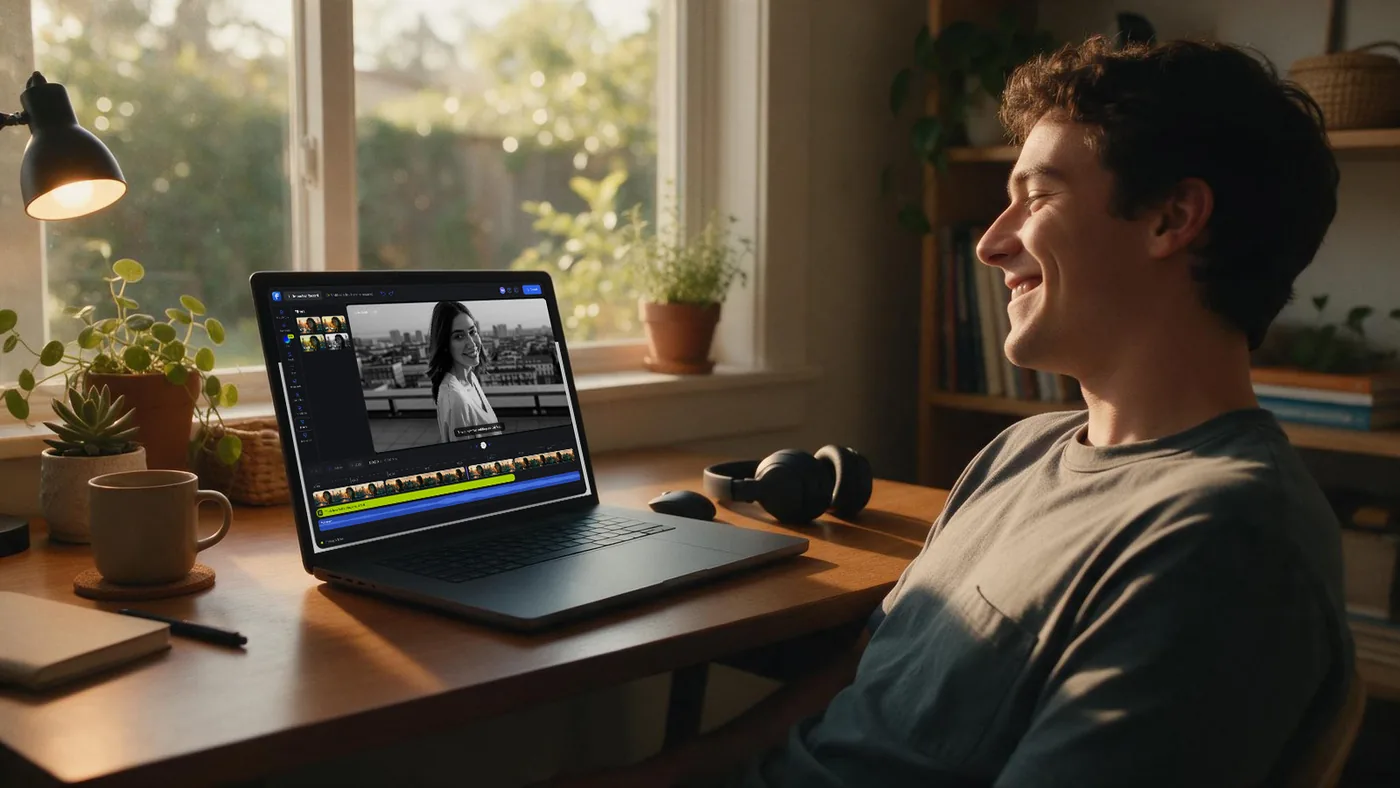
Getting Started with Eva: Flixier's AI Video Editing Assistant
Eva is Flixier’s built-in AI video editing assistant. Instead of just executing single commands, Eva understands your intent. She can analyze your transcript, make structural decisions, and hand you a completed first cut directly inside your timeline.
Eva is designed to handle the mechanical work so you can focus on the creative polish. Everything happens right in the editor, meaning you always remain in full control of your final video.
How to Use Eva for the First Time
To get the best results, Eva needs footage with spoken words, such as podcasts, interviews, lessons, or walkthroughs. Since she works directly from the transcript, she needs speech to base her editing decisions on.
Important Note: Eva applies changes directly to your active timeline. If you are repurposing an existing video and want to keep your original long-form cut, you must duplicate your project first before asking Eva to make edits.
- Create a new Flixier project or duplicate an existing one.
- Upload your spoken footage to the timeline.
- Click the Assistant icon (Eva) located on the left side of your editor panel.
- Tell Eva what you need in plain language. For example: "Clean up my interview footage and remove the bad takes" or "Make a 30-second vertical social clip."
- For structural edits, Eva will show you a review card with her proposed cuts.
- Let her build your cut and review the result. You can undo, adjust, and perfect any changes she makes.
What Eva Can Do for Your Video
Eva is equipped to help you with almost every stage of the video creation process. Just ask her to help you with any of the following tasks:
Edit and Structure
- Auto rough-cuts: Eva will transcribe your clip, mark mistakes, silences, and filler words, and remove them to give you a clean first cut.
- Timeline management: Ask her to trim, move, delete, reorder, or retime scenes on your timeline.
- Repurpose content: Tell Eva to adapt your video to different aspect ratios (like a 9:16 vertical format) for platforms like Reels, Shorts, or TikTok.
Text and Audio
- Subtitles: Generate auto-captions from speech, style them, and add animated text overlays or title cards.
- Audio adjustments: She can adjust volume, add fades, generate background music from a prompt, insert sound effects, and even record or generate voiceovers.
Polish and Branding
- Brand consistency: Tell Eva to add your logo, fonts, and colors using your Brand Kit.
- Visual enhancements: Ask her to apply color grades or LUTs to make your footage pop. She can also score your creative freshness and suggest improvements.
Create From Scratch
- If you are starting with a blank canvas, Eva can plan and script your video (such as ads, promos, or tutorials). She can also generate assets like AI images and video clips to build a full timeline with scenes and transitions.
Your Built-in Help Center
Eva does not just edit; she also acts as your personal Flixier guide. If you ever get stuck or cannot find a specific tool, simply ask Eva for help. Eva will provide step-by-step instructions and highlight the exact UI menus you need to click directly inside the editor.
finished videos